If you bought a Xiaomi, Redmi or Realme phone in India, you know the feeling: you unbox a fast, well-priced phone, and then discover dozens of pre-installed apps you never asked for. GetApps, Mi Video, Mi Music, Theme Store, Realme Store, third-party games and shopping apps — they eat storage, push notifications, and some quietly run in the background. This guide shows you exactly how to remove bloatware from Xiaomi, Redmi and Realme without root, using three methods ranked from easiest to most thorough.
The good news is that you do not need to root your phone, unlock the bootloader, or void your warranty to get rid of most of this clutter. If you searched for how to remove bloatware from xiaomi realme without root, you are in the right place: the methods below work on MIUI 14, HyperOS, Realme UI and ColorOS, and every step is reversible. Let us get into it.
In this guide
- Why Xiaomi, Redmi and Realme Phones Ship With Bloatware
- What “Without Root” Really Means: Disable vs Uninstall
- Method 1: Remove or Disable Apps From Settings (Easiest)
- Method 2: Debloat With ADB on a Computer (Most Thorough)
- Method 3: On-Device Debloating With Shizuku + Canta (No PC)
- Safe-to-Remove List: What You Can and Cannot Touch
- Will Debloating Void Your Warranty or Break Updates?
- Frequently Asked Questions
Why Xiaomi, Redmi and Realme Phones Ship With Bloatware
Budget-friendly phones from Xiaomi, Redmi, Poco and Realme are sold on razor-thin hardware margins. Pre-installed apps are one way manufacturers recover that margin: some are the company’s own services (GetApps, Mi Video, Theme Store, Realme Store), some are paid placements from third-party developers, and some are regional apps for the Indian market like carrier utilities or short-video apps.
There are three practical problems with bloatware. First, storage: on a 64GB or 128GB phone, system apps plus pre-loaded apps can leave you with far less free space than the box promised. Second, background activity: many of these apps request permissions and run services at boot, which can slow down a budget phone over time and use mobile data you are paying for. Third, notifications and ads: some pre-installed apps push promotional notifications that you have to hunt down and disable individually.
It is worth being fair here. Not every pre-installed app is junk. The phone’s dialer, messaging app, camera, file manager and settings components are essential system apps. The goal of debloating is to remove the apps you do not use — not to strip the phone down to something unstable. That is exactly what this guide helps you do safely.
What “Without Root” Really Means: Disable vs Uninstall
On Android, there is an important difference between disabling an app and uninstalling it. Disabling hides the app from your drawer, stops it from running and blocks its notifications — but the app’s files stay on the system partition, so you do not recover storage space. Disabling is available for most apps right inside Settings and is completely safe and instantly reversible.
Uninstalling via ADB (Android Debug Bridge) goes further: it removes the app for your user profile. On a phone with a single user, that effectively deletes the app and frees the space its data occupied. The system image keeps a copy, which is why the process does not need root — and also why a factory reset brings the bloatware back. If you ever remove the wrong app, you can reinstall it for your user with a single ADB command, which we will cover below.
So this guide to how to remove bloatware from xiaomi realme without root uses only Android’s own tools — Settings and ADB — to remove apps from your user profile. No bootloader unlock, no custom recovery, no warranty paperwork. Pick the method below that matches your comfort level.
Method 1: Remove or Disable Apps From Settings (Easiest)
Start here. A surprising number of bloatware apps can be removed or disabled with nothing more than the Settings app, and this is the only method that is completely risk-free. Open Settings > Apps > See all apps (on MIUI/HyperOS: Settings > Apps > Manage apps; on Realme UI: Settings > App management > App list).
Uninstall what you can
Tap through the list and uninstall anything you recognise as third-party bloat: pre-installed games, shopping apps, short-video apps, duplicate browsers or music apps you never opened. On many Xiaomi and Realme phones sold in India, a good number of these allow a normal uninstall. If the Uninstall button is greyed out, the app is a system app — move to the next step.
Disable the rest
For system apps you cannot uninstall — GetApps, Mi Video, Mi Music, Theme Store, Realme Store, and similar — tap Disable (or “Force stop” followed by “Disable” on some versions). The app vanishes from your app drawer, stops running and stops notifying you. This single step, applied to 10–15 apps, visibly cleans up a new phone and is where most people should stop if they are nervous about the advanced methods.
Turn off recommendations and ads in MIUI/HyperOS
If you own a Xiaomi or Redmi phone, bloatware is only half the annoyance — the other half is “recommendations” inside system apps. Go to Settings > Apps > Manage apps and disable recommendations in individual apps like Mi Video, Mi Music, Themes and Downloads, then go to Settings > Passwords & security > Authorization & revocation and revoke authorization for msa (MIUI System Ads). That one toggle kills a large share of system-app ads.
Method 2: Debloat With ADB on a Computer (Most Thorough)
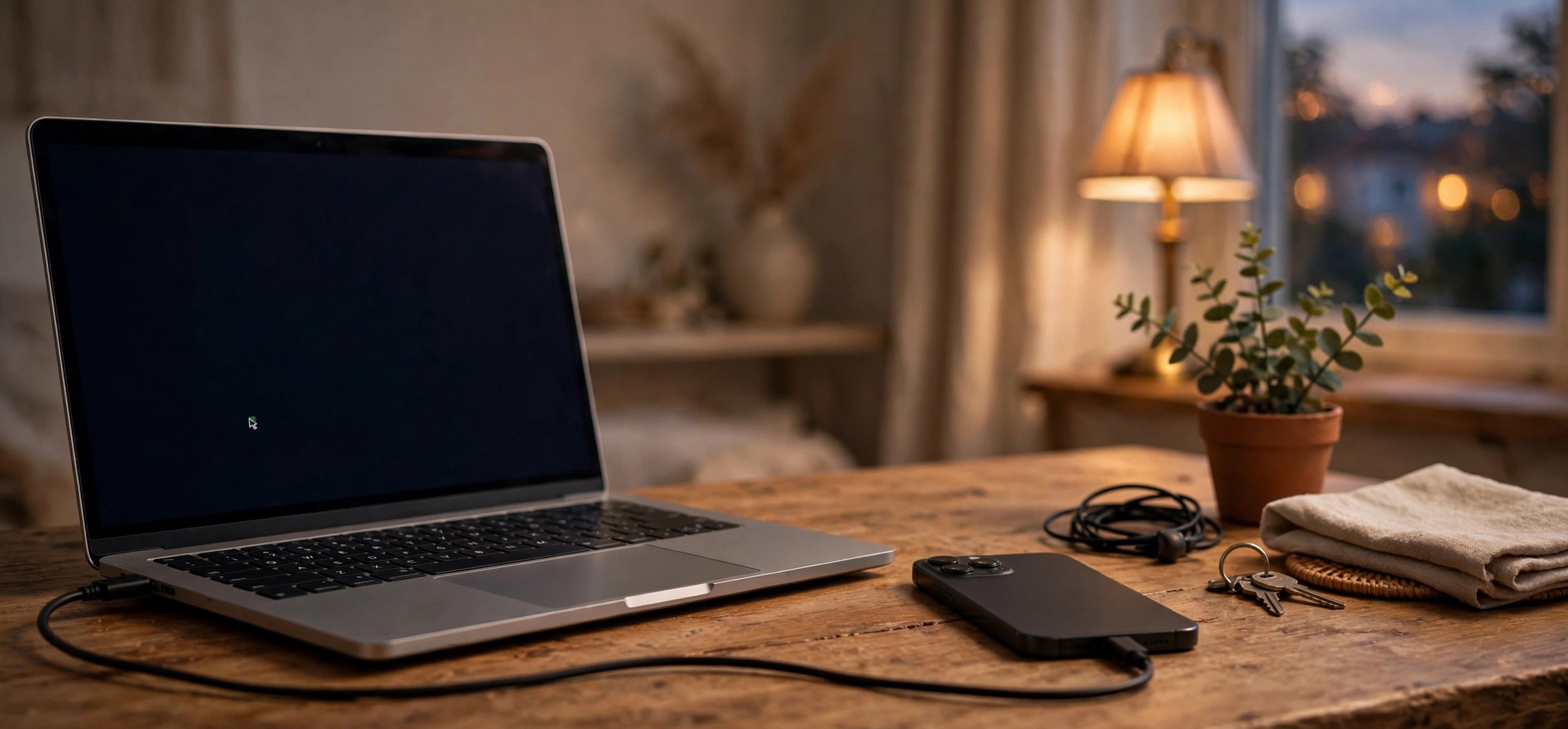
ADB debloating is the gold standard for removing bloatware without root. You connect your phone to a Windows PC or Mac with a USB cable, run a few commands, and uninstall system apps from your user profile. It sounds technical, but the whole process takes about fifteen minutes and requires no coding knowledge — you will be copying and pasting commands.
Step 1: Install ADB on your computer
Download Google’s official Platform Tools package for your operating system from the Android developer site. Extract the ZIP to a folder like C:\platform-tools on Windows. That folder contains adb.exe, the only tool you need. You do not need to install the full Android Studio.
Step 2: Enable USB debugging on your phone
On your Xiaomi, Redmi or Realme phone, go to Settings > About phone and tap MIUI version (or Build number on Realme) seven times until developer mode activates. Then go to Settings > Additional settings > Developer options and enable USB debugging and USB debugging (Security settings) on Xiaomi phones. Connect the phone to your PC with a cable and tap Allow on the “Allow USB debugging?” prompt that appears on the phone.
Step 3: Find the package names of the apps to remove
Open a command prompt or terminal inside your platform-tools folder and run adb devices — you should see your phone listed. To list installed packages, run adb shell pm list packages and look for familiar names (for example, com.miui.player for Mi Music or com.xiaomi.mipicks for GetApps). An easier route for beginners is the free, open-source Universal Android Debloater tool, which shows every app with plain-English descriptions and lets you uninstall or disable them with checkboxes — no command typing required.
Step 4: Uninstall apps for your user
The core command is:
adb shell pm uninstall -k –user 0 <package-name>
For example, to remove GetApps you would run adb shell pm uninstall -k –user 0 com.xiaomi.mipicks. The -k flag keeps the app’s data and cache directories (irrelevant once the app is gone), and –user 0 limits the uninstall to your user profile, which is why root is not required. Repeat for each package on your hit list from the safe-to-remove table below.
If you remove the wrong app by mistake
Do not panic. Reinstall it for your user with adb shell cmd package install-existing <package-name>. Because the system image retains a copy, the app comes straight back. This reversibility is what makes ADB debloating safe for ordinary users: the worst case is a few minutes of reinstallation, not a bricked phone. For more such fixes, see our guide on fixing Airtel 5G not working on Android, which covers similar settings-level troubleshooting.
Method 3: On-Device Debloating With Shizuku + Canta (No PC)
No computer handy? You can debloat entirely on the phone using Shizuku, a free app that grants other apps elevated ADB-level permissions without root, paired with an app like Canta that lists system apps for removal. This method uses wireless debugging, a feature built into Android 11 and later, so it works on most Xiaomi, Redmi and Realme phones sold in the last few years.
Step 1: Set up Shizuku with wireless debugging
Install Shizuku from the Play Store, then go to Settings > Developer options and enable Wireless debugging. Inside the Shizuku app, choose “Pairing with a pairing code,” enter the six-digit code shown in your phone’s wireless debugging notification, and start Shizuku. You will need to repeat this pairing after every phone restart — it takes about thirty seconds.
Step 2: Remove apps with Canta
Install Canta (available on GitHub and the Play Store) and grant it access through Shizuku when prompted. Canta shows your system apps with badges indicating which are generally safe to remove, and lets you uninstall them from your user profile just like the ADB method — no PC, no cable, no commands. It is the friendliest option for beginners who only have their phone.
One caveat: because Shizuku relies on wireless debugging, the permission drops on reboot and some manufacturers’ aggressive battery management can interfere. If Canta stops working after a restart, just re-pair Shizuku. And if you ever want to reverse a removal, Canta can reinstall apps from the system image the same way ADB can.
Safe-to-Remove List: What You Can and Cannot Touch
The single most important rule of debloating: never remove something you cannot identify. The table below covers the usual suspects on Xiaomi (MIUI/HyperOS) and Realme (Realme UI/ColorOS) phones sold in India. Package names are included so you can match them exactly in ADB or Canta.
| App | Package name | Verdict |
|---|---|---|
| GetApps / Mi App Store | com.xiaomi.mipicks | Safe to remove — the Play Store covers you |
| Mi Video | com.miui.videoplayer | Safe to remove if you use another player |
| Mi Music | com.miui.player | Safe to remove |
| Themes | com.android.thememanager | Remove only if you do not customise themes |
| Realme Store / App Market | com.heytap.market / com.oppo.market | Safe to remove — Play Store covers you |
| Game Center / Games | com.xiaomi.glgm / com.coloros.gamespace | Safe to remove if you do not game |
| Pre-installed third-party games & shopping apps | Varies | Safe to remove |
| Mi Browser | com.mi.globalbrowser | Remove only if Chrome/another browser is set as default first |
| Compass, Notes extras, duplicate utilities | Varies | Generally safe — disable first, remove later |
| System UI, Settings, Phone, Messages, Contacts | com.android.systemui and similar | Never touch — the phone will malfunction |
| com.miui.securitycenter (Security app) | com.miui.securitycenter | Do not remove — it manages permissions and cleaning on MIUI |
| Carrier services / SIM toolkit | Varies | Do not remove — can break calls and SMS |
When in doubt, use the disable-first strategy: disable the app in Settings, use your phone normally for a week, and only then uninstall it via ADB or Canta. If something breaks during that week, you will know exactly which app caused it and can re-enable it in seconds.
Will Debloating Void Your Warranty or Break Updates?
No. Removing apps for your user profile with ADB or Shizuku does not unlock the bootloader, does not trip any tamper flags, and does not void the warranty on Xiaomi, Redmi or Realme phones — the system partition is untouched. Service centres see a normal, unrooted phone.
Software updates also continue to work normally. An OTA update (MIUI/HyperOS or Realme UI) installs over the system image, which still contains the original apps — so updates download and install just like before. Two things to note: a factory reset will restore all the bloatware you removed (you will need to repeat the process), and a major OS upgrade occasionally re-enables apps you had disabled in Settings, so a quick re-check after big updates is good hygiene.
One more honest note: debloating will not magically double your battery life. On modern budget phones, the biggest battery wins come from screen-on time and network conditions, not from removing a dozen idle apps. If battery is your main complaint, also check our guide on the best 20000mAh power banks under ₹1500 in India for a practical backup. What debloating reliably delivers is a cleaner app drawer, fewer notifications, more free storage, and a phone that feels like yours instead of a billboard.
Frequently Asked Questions
Can I remove bloatware from Xiaomi phones without a PC?
Yes. Method 1 (Settings > Apps) needs no PC at all and handles a large share of bloatware. For system apps that cannot be disabled, Method 3 (Shizuku + Canta) debloats entirely on-device using wireless debugging on Android 11 and later.
Is it safe to remove bloatware without root?
Yes, provided you stick to identifiable apps and the safe list above. ADB and Shizuku only remove apps from your user profile, the system image keeps a backup copy, and anything you remove can be reinstalled with one command. Never remove core system packages like System UI, Settings, or the Security app.
Will the bloatware come back after a software update?
Regular OTA updates do not restore removed apps — they patch the system image, which is separate from your user profile. A factory reset, however, wipes your user profile and brings everything back, so keep your package list saved somewhere for a quick repeat run.
Does removing bloatware speed up my phone?
It can make a noticeable difference on entry-level phones with 4GB RAM or less, mainly because fewer apps compete for memory and boot time at startup. On mid-range phones the improvement is subtler — mostly a cleaner interface, more free storage and fewer background notifications. Also worth reading: what eSIM is and how it works in India if you are setting up a new device after a reset.
What is the difference between disabling and uninstalling bloatware?
Disabling hides the app and stops it running but keeps its files on the phone, so you recover no storage. Uninstalling via ADB or Canta removes the app from your user profile, freeing space. Both are reversible; uninstalling simply goes further.
Can I debloat a Realme or Poco phone with the same steps?
Yes. Poco phones run MIUI/HyperOS, so the Xiaomi steps apply directly. Realme phones run Realme UI (based on ColorOS) — Settings paths and package names differ slightly, but the same three methods (Settings disable, ADB uninstall, Shizuku + Canta) all work.
Bottom line: learning how to remove bloatware from xiaomi realme without root is one of the highest-value things you can do for a budget phone. Start with Settings, graduate to ADB or Shizuku when you are ready, stick to the safe list, and you will end up with a faster-feeling phone that finally feels like yours.