
That sinking feeling when you realise an important WhatsApp conversation is gone — and you never turned on chat backup — is something millions of people experience every year. Maybe you accidentally deleted a chat, uninstalled the app, or switched phones without moving your data. The honest truth first: to recover deleted whatsapp messages without backup is difficult, and no method guarantees success. But difficult is not impossible. Depending on how the messages were lost and how long ago, several realistic recovery routes exist, and this guide walks through each one honestly, including what each method can and cannot do.
Before we begin, set your expectations correctly. WhatsApp messages are end-to-end encrypted and stored only on your device (and in your backup, if you enabled one). WhatsApp’s servers do not keep copies of your messages, and WhatsApp support cannot restore them for you. That means every recovery method below works with traces left on your phone — notification logs, media files, or the other person’s copy of the chat. Work through the methods in order, starting with the easiest.
In this guide
- Why So Many People Have No Backup
- Can You Really Recover Deleted WhatsApp Messages Without Backup?
- Method 1: Check the Other Person’s Copy of the Chat
- Method 2: Use Android’s Notification History
- Method 3: Recover Media Files From Phone Storage
- Method 4: Try Notification-Log Apps (With Caution)
- Method 5: Third-Party Recovery Tools (Last Resort)
- Never Lose Chats Again: Set Up Backup Properly
- Frequently Asked Questions
- Conclusion
Why So Many People Have No Backup
WhatsApp does not back up your chats automatically on a fresh install. On Android, you have to open Settings > Chats > Chat backup and choose a Google account and a backup frequency. Many people skip this during setup, or the backup silently fails because Google Drive is full, the phone is out of storage, or mobile data backup is disabled. On iPhone, the equivalent is iCloud backup, which fails just as quietly when iCloud storage runs out.
Another common trap: WhatsApp keeps only the latest backup in Google Drive, overwriting the previous one each time. So if you deleted a chat on Monday and your backup ran on Tuesday, the backup no longer contains the deleted chat either. Understanding this helps you act fast — the sooner you attempt recovery, the better your chances.
One more important point: if you do have a backup from before the deletion, stop here and restore it instead. Uninstall WhatsApp, reinstall it, verify your number, and tap Restore when prompted. That is by far the most reliable recovery method, and everything below is only for when no usable backup exists.
Can You Really Recover Deleted WhatsApp Messages Without Backup?
Yes — sometimes. To recover deleted whatsapp messages without backup, you are relying on copies that exist outside WhatsApp’s own database: the other person’s phone, your notification log, or media files saved to your storage. None of these is a true “restore” of the chat, and none works in every situation, which is why you should treat this guide as a ladder: start with the method most likely to succeed and only move down when the one above fails.
The single biggest factor is time. Notification logs expire within hours or days, phone storage gets overwritten as you keep using the device, and the other person’s willingness to help may fade. If the deletion just happened, stop using chat-heavy apps for a bit and work through the methods below right away — every hour of normal phone use slightly reduces what is recoverable from local storage.
Method 1: Check the Other Person’s Copy of the Chat
The simplest and most overlooked method: ask the other person to send you the chat. Deleting a chat on your phone does not delete it on theirs — unless you used “Delete for everyone,” which only works within a short time window after sending.
WhatsApp has a built-in export feature that makes this easy. The other person can open the chat, tap the contact or group name, scroll down to Export chat, and choose whether to include media. They can then share the resulting text file with you through WhatsApp, email, or any other app. The export contains the full message history with timestamps.
This method works for individual chats and groups, costs nothing, needs no technical skill, and has the highest success rate of anything in this guide. Its only limitation is obvious: it requires the cooperation of the other person, and it cannot recover messages that were deleted for everyone. Still, always try this first before touching any recovery software. For related WhatsApp troubleshooting, our guide on fixing WhatsApp calls that don’t ring covers another common headache.
Method 2: Use Android’s Notification History
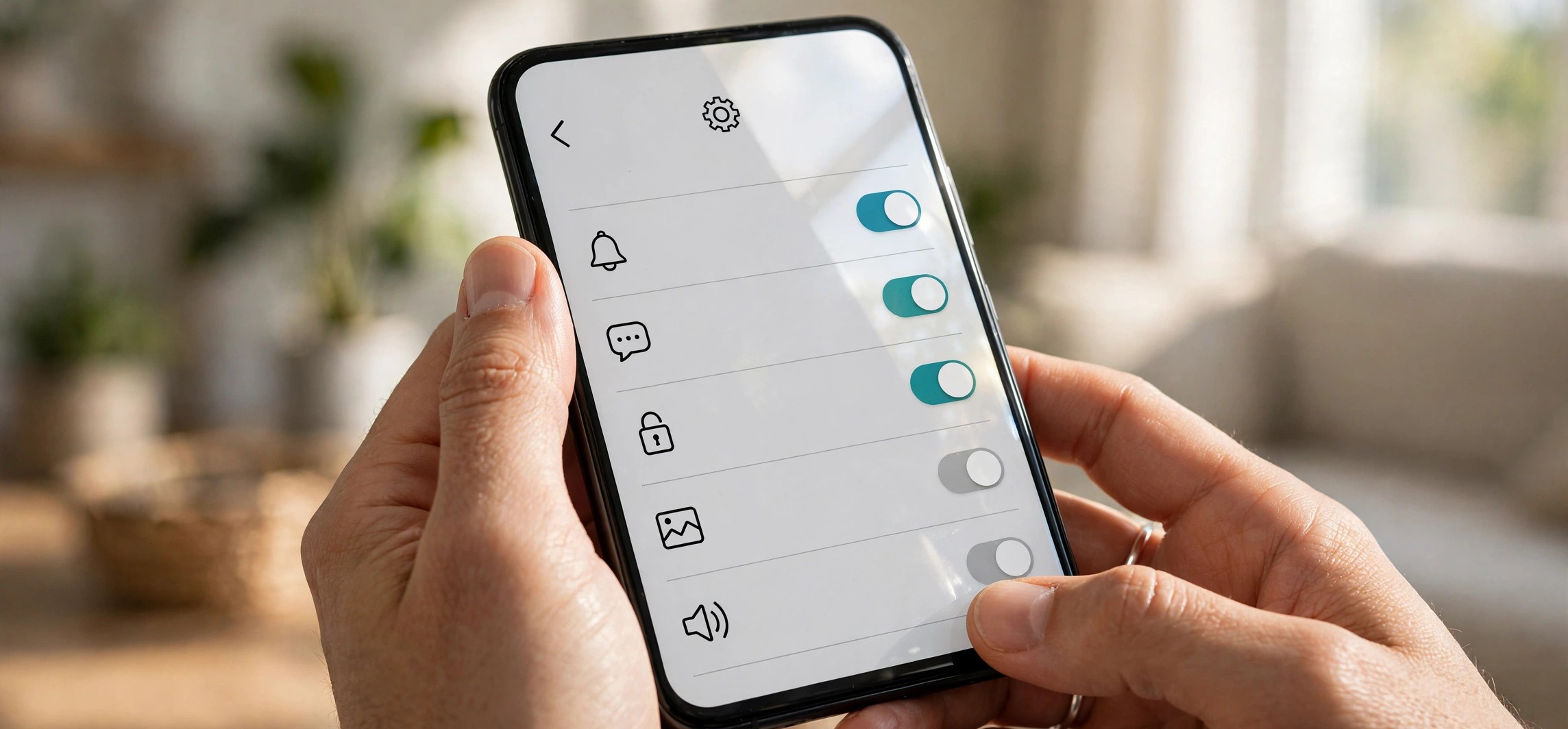
If the deleted messages arrived while your phone was on and notifications were enabled, Android may have logged their text in its notification history — even if the chat itself is gone.
How to check notification history
- Open Settings and search for Notification history.
- Turn it on if it is off (note: it only starts recording from the moment you enable it — it cannot show notifications from before that).
- Look through the log for WhatsApp entries. You will see the sender’s name and the message text as it appeared in the notification.
Limitations you should know
Notification history only captures messages that actually generated a notification. Messages received while the chat was open, muted chats, and messages from contacts with notifications disabled will not appear. It also typically shows only recent notifications — usually the last 24 hours, depending on your phone. And it cannot recover photos, videos, or voice notes, only the text preview. Even so, for a message deleted an hour ago, this built-in feature is often enough.
Method 3: Recover Media Files From Phone Storage
Even when chat text is gone, the photos, videos, and documents shared in WhatsApp often survive in your phone’s storage. WhatsApp saves received media to the WhatsApp/Media folder (on newer versions, under Android/media/com.whatsapp/WhatsApp/Media) unless you disabled auto-download.
Open your phone’s file manager and browse to the WhatsApp media folders — WhatsApp Images, WhatsApp Video, WhatsApp Documents, and WhatsApp Audio. Files remain there even after the chat is deleted, because deleting a chat does not delete downloaded media by default. Check your gallery app too, since received images usually appear there. Also look in the Sent subfolders for media you sent.
If the files were deleted from storage as well, check your phone’s Trash or Recycle bin in the gallery or file manager — many Android phones keep deleted files for 30 days. This method will not recover message text, but for many people, the lost photos and videos are what actually mattered.
Method 4: Try Notification-Log Apps (With Caution)
Several apps on the Play Store — often called “notification history” or “deleted message recovery” apps — record every notification your phone receives and save the text in a searchable log. If such an app was already installed and running before the messages were deleted, it may have a copy.
Important cautions: these apps cannot recover anything from before they were installed — installing one now will not bring back old messages. They also request access to all your notifications, which means they can read OTPs, bank alerts, and private messages from every app. Only use a well-reviewed app from a reputable developer, check exactly what permissions it asks for, and uninstall it when you are done. Never grant notification access to an app you do not fully trust.
Also be aware that some of these apps overpromise. No app can decrypt WhatsApp’s message database without your backup or root access, despite what some app descriptions claim. Treat any app promising “full chat recovery without backup” with deep scepticism.
Method 5: Third-Party Recovery Tools (Last Resort)
Desktop data-recovery programs claim to scan your phone’s internal storage for deleted WhatsApp databases. In practice, their success rate on modern Android phones is very low, and here is why: Android’s storage encryption means deleted database files are usually unrecoverable without root access, and most tools require you to enable USB debugging, install drivers, and sometimes root the phone — rooting voids warranties and can break banking apps.
If you still want to try, choose only established tools from known companies, never pay before seeing a free scan preview of what is recoverable, and never install “WhatsApp recovery” APKs from outside the Play Store — many are malware. For most people, this method is not worth the risk and effort compared to Method 1.
A realistic summary of all five methods:
| Method | What it can recover | Success rate | Cost / risk |
|---|---|---|---|
| Ask the other person / export chat | Full chat text + media | High | Free, no risk |
| Android notification history | Recent message text only | Medium | Free, built-in |
| Phone storage media folders | Photos, videos, documents | Medium | Free, no risk |
| Notification-log apps | Message text (if installed earlier) | Low–Medium | Privacy risk |
| Third-party recovery tools | Occasionally database fragments | Low | Paid, rooting risks |
Never Lose Chats Again: Set Up Backup Properly
Recovery without a backup is a gamble; prevention takes two minutes. On Android, open WhatsApp and go to Settings > Chats > Chat backup. Choose your Google account, tap Back up to Google Drive, and select Daily. Turn on Include videos if your chats contain important videos (note this uses more Drive storage). Then tap Back Up once to create your first backup immediately.
Two extra safeguards: make sure your Google Drive has enough free space (WhatsApp backups can be several gigabytes), and allow backup over mobile data or remember to connect to Wi-Fi regularly — a backup scheduled “only on Wi-Fi” that never sees Wi-Fi never runs. iPhone users should check Settings > Chats > Chat Backup and confirm iCloud backup is on with enough iCloud storage. WhatsApp’s own chat backup help page has the official step-by-step instructions. And if this scare has you rethinking where your private conversations live, our Signal vs Telegram privacy comparison is worth a read before you move chats anywhere.
Frequently Asked Questions
Can WhatsApp support restore my deleted messages?
No. WhatsApp messages are end-to-end encrypted, which means WhatsApp’s servers never store readable copies of your chats. Support cannot access, recover, or restore your messages under any circumstances. Your only copies are on your device and in your own backups.
I deleted a chat and my backup ran afterwards. Is the chat gone forever?
Most likely, yes — each new backup overwrites the previous one, so a backup taken after deletion no longer contains the chat. This is why acting quickly matters, and why the other person’s copy of the chat (Method 1) becomes your best hope.
Do “deleted message recovery” apps on the Play Store really work?
Only partially. They can save the text of notifications received after you installed them — they cannot dig up old deleted chats, decrypt WhatsApp’s database, or recover media. Any app claiming full recovery without a backup is misleading you.
Can I recover messages deleted with “Delete for everyone”?
Sometimes. If the message generated a notification on your phone before it was deleted for everyone, Android’s notification history (Method 2) may still show its text. Once that notification entry expires, the message is gone from your side.
Does uninstalling WhatsApp delete my messages permanently?
Uninstalling removes the app and its local message database, but your Google Drive or iCloud backup (if one exists) survives. Reinstall and restore from that backup. Without a backup, uninstalling makes recovery much harder — so do not uninstall the app as a “fix” if you are hoping to recover chats.
Conclusion
To recover deleted whatsapp messages without backup, start with the highest-odds move: ask the other person to export and share the chat. Then check Android’s notification history for recent texts and your phone’s storage for surviving media files. Treat notification-log apps and desktop recovery tools as last resorts with modest expectations. And once this is behind you, spend two minutes turning on daily chat backup — it is the only method in this entire guide that works every single time.