You missed an important WhatsApp call — again. Your phone was sitting right there on the table, locked, and it never made a sound. Later you unlock it to find a “Missed voice call” notification and a frustrated “why aren’t you picking up?” message. When a whatsapp call not ringing when phone locked problem strikes, it feels random, but it is not: something on your phone is silencing WhatsApp’s incoming-call signal, and in almost every case it is a notification setting, a battery-saver rule, or a permission that got changed without you noticing.
This guide covers both Android and iPhone, because the causes differ between the two. Android phones — especially Xiaomi, Redmi, Realme, Poco, Vivo, and Oppo — are notorious for aggressively killing background apps to save battery, which is exactly what stops WhatsApp from ringing. On iPhone the culprits are usually Focus modes, notification settings, or background refresh. Work through the fixes in order and test with a friend’s call after each batch.
In this guide
- Why WhatsApp Call Not Ringing When Phone Locked Happens
- Fix 1: Check Do Not Disturb and Focus Modes
- Fix 2: Turn On All WhatsApp Notification Settings
- Fix 3: Disable Battery Optimisation for WhatsApp (Android)
- Fix 4: Allow Background Data and Autostart
- Fix 5: Check App Permissions and Phone Settings
- Fix 6: Turn Off Power-Saving and Data-Saver Modes
- Fix 7: iPhone-Specific Fixes (Focus, Background Refresh)
- Fix 8: Update WhatsApp and Your Phone’s Software
- Fix 9: Reinstall WhatsApp as a Last Resort
- Frequently Asked Questions
- Conclusion
Why WhatsApp Call Not Ringing When Phone Locked Happens
For WhatsApp to ring while your phone is locked, three things must all work: the phone must receive the incoming-call signal from WhatsApp’s servers, the WhatsApp app must be awake enough in the background to process it, and the phone’s notification system must be allowed to make sound and show the full-screen incoming-call interface. If any one of these breaks, you get silence — or worse, you only discover the missed call when you unlock the phone minutes later.
On Android, the most common breaker is battery optimisation. Phone makers add aggressive power management on top of stock Android, and these systems routinely put WhatsApp to sleep minutes after you lock the screen. The app then cannot receive the call signal until something wakes the phone. On iPhone, Apple controls background behaviour more tightly, so the usual suspects are Focus or Do Not Disturb modes, notification permissions, or Low Power Mode throttling background activity.
One quick diagnostic before you start: ask someone to call you on WhatsApp while the phone is unlocked. If it rings fine unlocked but not locked, the problem is almost certainly battery/background management, not your network — skip straight to Fix 3 (Android) or Fix 7 (iPhone).
Fix 1: Check Do Not Disturb and Focus Modes
This is the simplest cause and the easiest to overlook, because Do Not Disturb can turn itself on via schedules or bedtime modes you set up long ago and forgot.
On Android, swipe down the quick-settings panel and make sure Do Not Disturb is off. Then go to Settings > Sound > Do Not Disturb and check Schedules — disable any automatic schedule you do not want. Also check that WhatsApp is not accidentally excluded: under Do Not Disturb > People or Apps, WhatsApp calls should be allowed if you use DND at night but still want calls.
On iPhone, open Settings > Focus and check every Focus mode (Do Not Disturb, Sleep, Work, Personal). A Focus can activate on a schedule or when you arrive at a location. Either turn the schedules off or add WhatsApp to the Allowed Apps list inside the Focus so its calls always come through. Also check the Share Across Devices toggle — a Focus turned on from your iPad or Mac will silence your iPhone too.
Fix 2: Turn On All WhatsApp Notification Settings
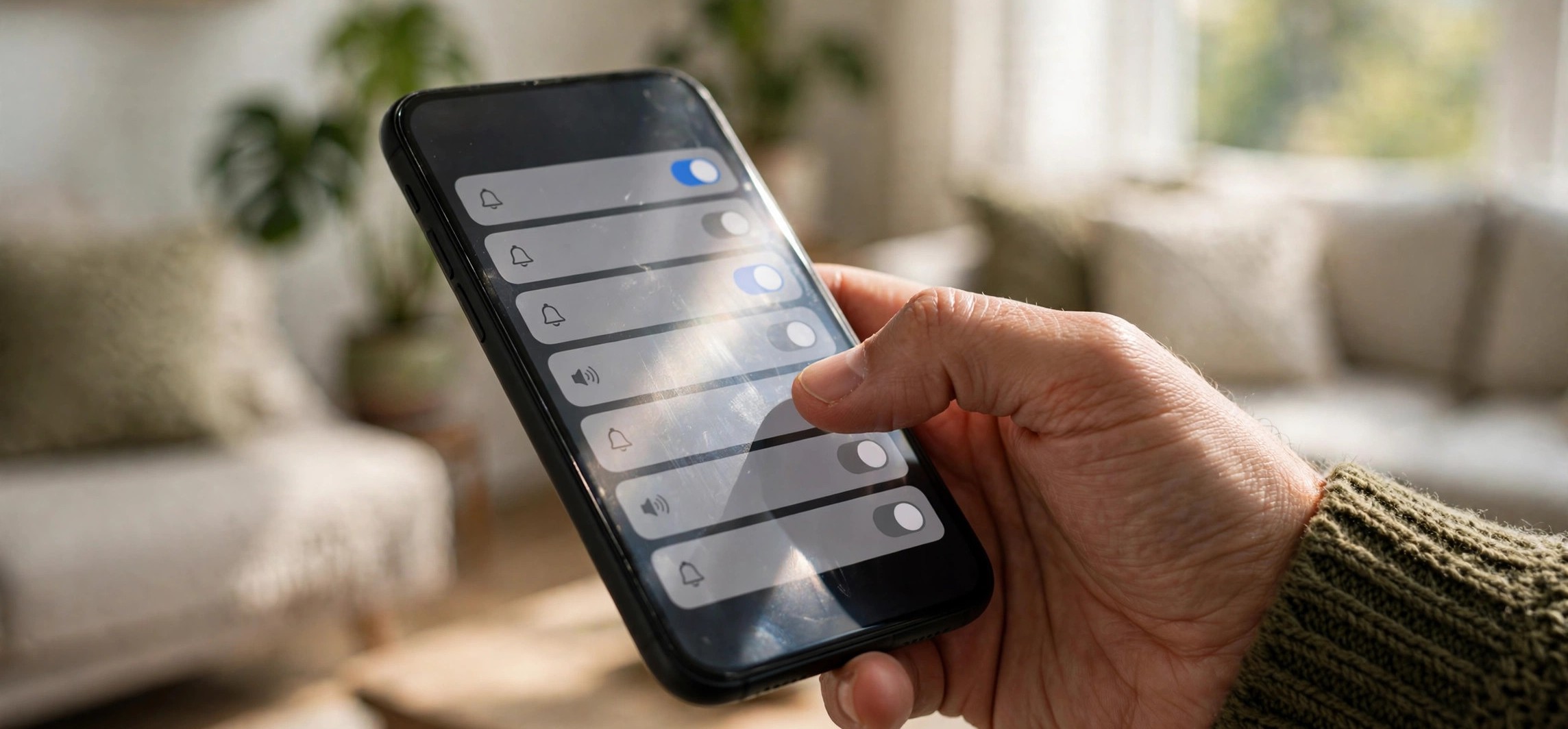
WhatsApp has its own notification switches inside the app, separate from the phone’s system settings. Both layers must be on.
Inside WhatsApp
Open WhatsApp, tap the three-dot menu, and go to Settings > Notifications. Make sure Conversation tones is on, and under Calls, check that the Ringtone is set to something audible (not “Silent” or “None”) and Vibrate is set to your preference. If the ringtone got set to Silent — which sometimes happens after updates — the phone will show the call but never make a sound.
In the phone’s system settings
On Android, go to Settings > Apps > WhatsApp > Notifications and make sure notifications are fully enabled, including the Calls notification channel set to Sound with Pop on screen allowed. On iPhone, go to Settings > WhatsApp > Notifications, enable Allow Notifications, and turn on Sounds, Badges, and all three alert styles (Lock Screen, Notification Centre, Banners).
Fix 3: Disable Battery Optimisation for WhatsApp (Android)
This is the fix that solves the problem for most Android users. Your phone is putting WhatsApp to sleep when the screen locks, so the app never hears the incoming call.
Go to Settings > Apps > WhatsApp > Battery and set it to Unrestricted (on Samsung: Unrestricted; on Pixel: Unrestricted; the wording varies but the idea is the same — WhatsApp must be exempt from battery limits). On Xiaomi, Redmi, Poco, Realme, Oppo, and Vivo phones, you need extra steps because their custom power management is stricter:
- Enable Autostart for WhatsApp in Settings > Apps > Autostart (or Security app > Permissions > Autostart).
- In the recent-apps screen, pull down on the WhatsApp card and tap the lock icon so the system does not swipe it away.
- On Vivo/Oppo, also check Battery > Background power consumption management and allow WhatsApp to run in the background.
These steps look excessive, but on these brands a single missed toggle is enough to keep the problem alive. If you also use WhatsApp chat backup, note that the same battery restrictions can silently stop backups from running — fixing them helps both problems at once.
Fix 4: Allow Background Data and Autostart
Even with battery optimisation off, WhatsApp needs mobile data access while running in the background. If background data is restricted, the call signal cannot reach the app when the phone is locked.
On Android, go to Settings > Apps > WhatsApp > Mobile data & Wi-Fi and enable Background data and Unrestricted data usage. The second toggle matters if you use Data Saver mode — without it, Data Saver will block WhatsApp’s background connections. Also check Settings > Network & internet > Data Saver and either turn it off or add WhatsApp to its unrestricted list.
On iPhone, go to Settings > General > Background App Refresh, make sure the master switch is on, and that WhatsApp specifically is enabled. Without background refresh, WhatsApp on iPhone can be slow to wake for incoming calls, especially on older models.
Fix 5: Check App Permissions and Phone Settings
WhatsApp needs several permissions to ring properly, and updates sometimes revoke them silently.
On Android, open Settings > Apps > WhatsApp > Permissions and make sure Phone, Microphone, Contacts, and Notifications are all allowed. The Phone permission is the critical one for calls — without it, WhatsApp cannot display the full-screen incoming-call interface. Also check Settings > Apps > Special app access > Display over other apps and allow it for WhatsApp, since the incoming-call screen is technically drawn over the lock screen.
On iPhone, go to Settings > WhatsApp and confirm Microphone, Notifications, and Background App Refresh are on. Also open WhatsApp itself and check Settings > Notifications > Show Preview is enabled so call banners appear on the lock screen.
Fix 6: Turn Off Power-Saving and Data-Saver Modes
System-wide power-saving modes override individual app settings. If your phone is in Battery Saver (Android) or Low Power Mode (iPhone), background activity is throttled across the board, and WhatsApp calls are a common casualty.
On Android, check Settings > Battery > Battery Saver and turn it off, or at least check whether it is scheduled to turn on automatically at a certain battery percentage — many people enable the schedule and forget it. Samsung’s Power saving mode and OnePlus’s Battery saver have an option to restrict background activity that is worth disabling even if you keep the rest of power saving on. On iPhone, check Settings > Battery > Low Power Mode and turn it off while testing.
Also check any third-party “phone booster,” “battery saver,” or “cleaner” apps you may have installed. These are notorious for force-stopping WhatsApp in the background. If you use one, either uninstall it or add WhatsApp to its whitelist — better still, uninstall it, since Android and iOS manage memory perfectly well without them.
Fix 7: iPhone-Specific Fixes (Focus, Background Refresh)
iPhone users who have tried the above should also check these iOS-specific items. First, Silence Unknown Callers under Settings > Phone does not affect WhatsApp directly, but the similar behaviour people report usually traces back to a Focus mode — double-check Settings > Focus for any active automation, including Sleep schedules under the Health app that enable a Sleep Focus at night.
Second, check Settings > General > Date & Time and make sure Set Automatically is on. Incorrect system time can break the secure connection WhatsApp uses for calls. Third, if you use a VPN, try disconnecting it — some VPN configurations interfere with the ports WhatsApp calling uses. Finally, restart the iPhone fully (not just lock it) after changing these settings so they take effect cleanly.
Fix 8: Update WhatsApp and Your Phone’s Software
Missed-call bugs are occasionally caused by the app itself, and WhatsApp ships fixes regularly. Open the Play Store or App Store, search for WhatsApp, and install any available update. Then check your phone’s system update as well — Settings > System > System update on Android, Settings > General > Software Update on iPhone — because notification and background-behaviour bugs are sometimes fixed at the OS level.
After updating, re-check the notification and battery settings from Fixes 2 and 3. Major updates sometimes reset permissions and battery optimisation back to their defaults, silently reintroducing the exact problem you just fixed. This “settings reset after update” behaviour is one of the most common reasons the issue comes back months after you fixed it. WhatsApp’s official help centre also publishes current troubleshooting steps if a new app version introduces a fresh bug.
Fix 9: Reinstall WhatsApp as a Last Resort
If nothing else worked, a corrupted WhatsApp installation may be at fault. Back up your chats first — Settings > Chats > Chat backup > Back Up — and confirm the backup completed. Then uninstall WhatsApp, restart your phone, reinstall it from the Play Store or App Store, verify your number, and restore from the backup when prompted.
Caution: do not skip the backup step. Uninstalling without a backup deletes your local chat history permanently. After reinstalling, you will need to re-grant all permissions and redo the battery optimisation settings from Fix 3, so keep this guide handy during setup.
Frequently Asked Questions
Why do WhatsApp calls ring when the phone is unlocked but not when locked?
This pattern points squarely at battery optimisation or background restrictions. When the screen is on, WhatsApp is awake and receives the call signal normally. When the screen locks, the phone puts the app to sleep and the signal never gets processed. Fix 3 (Android) or Fix 7 (iPhone) is almost always the answer.
Can Do Not Disturb allow WhatsApp calls but silence everything else?
Yes. On Android, go to Do Not Disturb > Apps and add WhatsApp as an allowed app. On iPhone, add WhatsApp to the Allowed Apps list inside your Focus mode. This way you keep DND’s silence for everything else while never missing a WhatsApp call.
Why does the problem return after a phone update?
System and app updates frequently reset notification channels, permissions, and battery optimisation to defaults. After every major update, spend two minutes re-checking WhatsApp’s notification settings and battery exemption. It is annoying, but it takes far less time than missing important calls.
Does this problem affect regular phone calls too?
Usually not. Regular cellular calls are handled by the phone app at the system level and are much harder to silence accidentally. If regular calls also do not ring, check your ringtone volume, DND, and whether the phone is on silent — and our guide on enabling Wi-Fi calling may help if the issue is actually weak network coverage rather than settings.
Will these fixes drain my battery faster?
Barely. Exempting one app (WhatsApp) from battery optimisation has a negligible effect on battery life — WhatsApp is designed to idle efficiently and only wakes fully for messages and calls. The battery cost of missing an important call is far higher than the few extra milliamp-hours.
Conclusion
A whatsapp call not ringing when phone locked problem is frustrating, but it is one of the most fixable phone issues out there: check Do Not Disturb, turn on every WhatsApp notification switch, exempt WhatsApp from battery optimisation, and allow background data. On Xiaomi, Redmi, Realme, and similar brands, do not skip the Autostart and app-lock steps — they are the difference between a fix that works and one that does not. Run through the nine fixes once, test with a real call, and your phone will ring every time.