
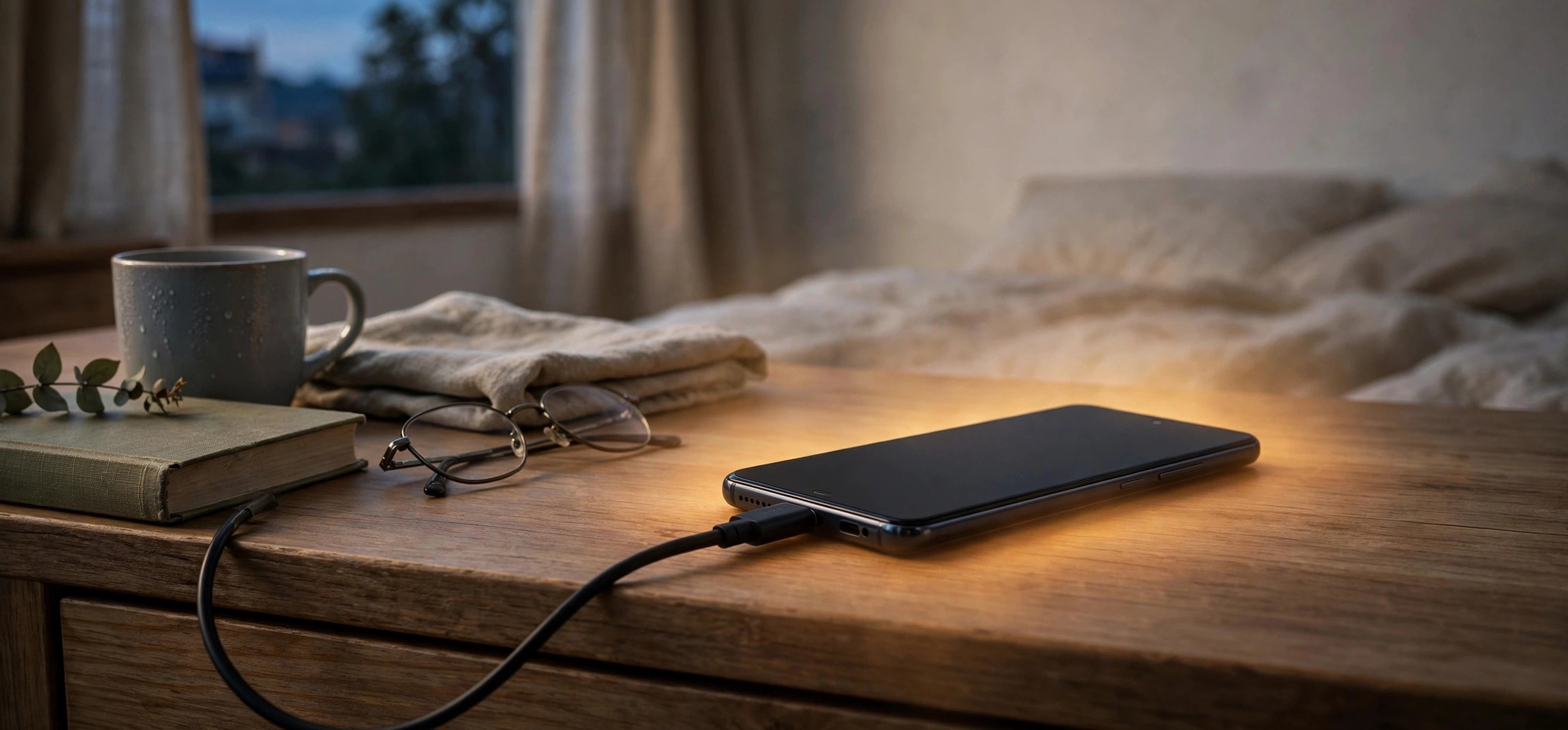
Android Phone Overheating While Charging? 10 Quick Fixes
A warm phone while charging is normal, but if your device gets uncomfortably hot every time you plug it in, something is wrong. This guide to the android phone overheating while charging how to fix problem explains why it happens, when heat becomes dangerous, and ten practical fixes that cool your phone down — from simple habit changes to settings tweaks and hardware checks. Heat is the enemy of battery health, so fixing this now also extends the life of your phone.
- Why Your Android Phone Heats Up While Charging
- When Is Charging Heat Dangerous?
- Fix 1: Remove the Case While Charging
- Fix 2: Use the Right Charger and Cable
- Fix 3: Stop Using the Phone While It Charges
- Fix 4: Turn Off Fast Charging When You Don’t Need It
- Fix 5: Close Background Apps and Find the Battery Hogs
- Fix 6: Charge on a Hard, Cool Surface — Never Under a Pillow
- Fix 7: Avoid Charging in Hot Environments
- Fix 8: Turn On Adaptive / Optimized Charging
- Fix 9: Update Software and Check for a Swollen Battery
- Fix 10: Reconsider Wireless Charging
- Long-Term Habits for a Cooler Battery
- FAQs
- Conclusion
Why Your Android Phone Heats Up While Charging
Charging a lithium-ion battery is a chemical process, and chemistry generates heat. Some warmth — roughly up to 35–40°C (95–104°F) on the phone’s surface — is completely normal, especially during fast charging. But several factors can push temperatures into the uncomfortable and harmful range:
- Fast charging: Pushing 25W, 65W, or even 120W into a battery generates far more heat than old 5W trickle charging. The phone manages this with thermal throttling, but sustained fast charging still runs hot.
- Simultaneous use and charging: Gaming, video calls, or navigation while charging means the processor generates heat at the same time the battery does — the two heat sources stack.
- Background activity: App updates, cloud photo backups, and large downloads running during charging add processor heat on top of charging heat.
- Poor heat dissipation: Thick cases, soft surfaces like beds and sofas, and hot rooms trap heat around the phone.
- Cheap or mismatched chargers: Low-quality chargers deliver unstable voltage, forcing the phone’s power circuitry to work harder and hotter.
- Wireless charging inefficiency: Wireless charging wastes 20–40% of energy as heat — it is inherently hotter than wired charging.
- Aging or damaged battery: Old batteries have higher internal resistance, which means more of the charging energy becomes heat instead of stored charge.
Understanding which of these applies to you is the key to choosing the right android phone overheating while charging how to fix approach. Most people are dealing with two or three stacked causes, not just one.
When Is Charging Heat Dangerous?
Not all heat is an emergency, but you should know the warning signs. Take action immediately if you notice any of these:
- The phone is too hot to hold comfortably (roughly above 45°C / 113°F surface temperature).
- Charging stops on its own with a temperature warning — this is the phone’s self-protection kicking in.
- The back panel is bulging or the screen is lifting — a swollen battery is a fire risk. Stop using the phone and get it serviced.
- You smell something chemical or sweet, or see any discoloration around the charging port.
- The phone restarts randomly while charging, which can indicate thermal shutdowns.
A phone that is merely warm is fine. A phone that burns your hand, swells, or smells odd is not — unplug it, move it to a non-flammable surface, and do not try to charge it again until it has been inspected. With that safety baseline set, here are the ten fixes.
Fix 1: Remove the Case While Charging
This is the simplest fix and it works surprisingly well. Phone cases — especially thick rugged, leather, or wallet cases — act as insulation, trapping the heat the battery naturally produces.
- Before plugging in, take the phone out of its case.
- Charge it on a hard surface with air circulating around it.
- Put the case back on when charging is done.
If your phone consistently runs cooler without the case, consider switching to a thinner case or one marketed as heat-dissipating. Some cases with metal frames or ventilation cutouts make a measurable difference. This single habit can drop charging temperatures by several degrees on its own.
Fix 2: Use the Right Charger and Cable
Not all chargers are equal. A cheap no-brand charger may claim “fast charging” while delivering dirty, unstable power that forces your phone’s charging circuitry to work overtime — generating excess heat and potentially damaging the battery.
- Use the charger that came with your phone, or the one recommended by the manufacturer.
- If buying a replacement, choose a reputable brand and check that it supports your phone’s charging standard (USB Power Delivery, Qualcomm Quick Charge, or the brand’s proprietary standard like SuperVOOC or HyperCharge).
- Inspect your cable. Frayed, kinked, or ultra-cheap cables cause voltage drops and intermittent connections that generate heat at the port. Replace any damaged cable immediately.
- Make sure the charging port is clean — lint and dust in a USB-C port cause poor contact and localized heating. Power the phone off and gently clean the port with a wooden toothpick or a blast of compressed air.
- Avoid random gas-station or market-stall chargers entirely; counterfeit chargers are a genuine fire risk.
Fix 3: Stop Using the Phone While It Charges
The single biggest cause of extreme charging heat is using the phone heavily at the same time. Gaming, video streaming, video calls, and GPS navigation each push the processor hard; combined with charging heat, temperatures spike fast.
- When you plug in, lock the screen and set the phone down. Let it charge undisturbed.
- If you must use it, stick to light tasks like reading or messaging — avoid games, camera recording, and video calls while charging.
- Turn on Airplane mode if you need the fastest, coolest charge and do not need connectivity — it cuts radio heat and speeds up charging noticeably.
- Lower screen brightness if the screen must stay on; the display is a major heat source.
If your phone regularly gets hot during car navigation while plugged in, that is the classic stacked-heat scenario: GPS + screen-on + charging + a hot car interior. A vent-mounted holder with the AC blowing on the phone helps enormously.
Fix 4: Turn Off Fast Charging When You Don’t Need It
Fast charging is convenient, but it is also the hottest way to charge. If you charge overnight or at your desk for hours, you do not need 65W — slow charging generates far less heat and is gentler on long-term battery health.
- On Samsung: go to Settings > Battery > Charging settings and toggle off Fast charging (and Super fast charging if present).
- On Pixel: go to Settings > Battery > Adaptive charging — Pixel handles this automatically, slowing the charge based on your alarm.
- On OnePlus/Oppo/Realme/Xiaomi: look under Settings > Battery for fast-charging toggles or smart charging options.
- Alternatively, just use an older, lower-wattage charger (e.g., a 10W or 15W brick) for overnight charging — the phone will simply charge at the slower rate.
Save fast charging for when you actually need a quick top-up before heading out. For routine charging, slow and cool wins.
Fix 5: Close Background Apps and Find the Battery Hogs
Apps running in the background — syncing, backing up photos, downloading updates — keep the processor busy while the battery is trying to charge, stacking heat on heat.
- Before plugging in, swipe away recent apps you are not actively using.
- Go to Settings > Battery > Battery usage and check which apps consumed the most power recently.
- If an app you barely use is near the top, tap it and restrict its background activity (App info > Battery > Restricted).
- Pause heavy background tasks while charging: in Google Photos, backup can wait; in the Play Store, pause app updates (profile > Manage apps & device) until charging finishes.
- Turn off mobile hotspot and Bluetooth if you are not using them — radios generate heat.
A misbehaving app stuck in a crash-restart loop is a classic hidden cause: it will show abnormal battery usage and keep the phone warm even at idle. If you spot one, clear its cache or reinstall it. Bloated background apps also tend to hoard storage, which makes the whole phone work harder — if space is tight too, see our guide on fixing full phone storage on Android. Overheating can also make notifications behave oddly on some phones; if alerts arrive late after heat episodes, see our guide on fixing delayed Android notifications.
Fix 6: Charge on a Hard, Cool Surface — Never Under a Pillow
Where you place the phone while charging matters as much as how you charge it. Soft surfaces insulate; hard surfaces conduct heat away.
- Always charge on a hard, flat surface like a desk, nightstand, or tile floor.
- Never charge under a pillow, blanket, or inside a bag. This is the most common cause of dangerously overheated phones and, in rare cases, fires.
- Keep the phone out of direct sunlight while charging — a windowsill in the afternoon sun can add 10°C or more.
- Do not stack anything on top of the charging phone.
- If the room is warm, a small fan blowing across the phone makes a real difference.
Fix 7: Avoid Charging in Hot Environments
Lithium-ion batteries charge best between roughly 16°C and 35°C (61–95°F). Above that, the phone has to throttle charging speed to protect itself — and if it cannot shed heat fast enough, it overheats.
- Do not charge in a hot car. A parked car in summer can exceed 60°C (140°F) inside. If you must charge while driving, use a vent mount with AC airflow.
- Avoid charging right after heavy use. If the phone is already hot from gaming or sun exposure, let it cool for 10–15 minutes before plugging in.
- Charge indoors in an air-conditioned or shaded room during heat waves.
- If your phone shows a temperature warning and pauses charging, let it cool down on its own — do not put it in the freezer. Rapid cooling can cause condensation inside the phone.
Fix 8: Turn On Adaptive / Optimized Charging
Modern Android phones can learn your routine and slow down charging to reduce heat and battery wear — for example, charging to 80% quickly, then trickling to 100% just before your morning alarm.
- Samsung: Settings > Battery > Battery protection — choose Adaptive or Maximum 80% limit.
- Pixel: Settings > Battery > Adaptive charging — turn it on and set an alarm so the phone knows your schedule.
- OnePlus/Oppo: Settings > Battery > Battery health — enable Smart charging.
- Xiaomi: Settings > Battery > Battery protection — enable Optimized charging.
These features reduce the time the battery spends at high voltage and high temperature — the two conditions that age batteries fastest. If your phone offers an 80% charge limit, consider using it as your daily default; you will barely notice the missing 20% and your battery will last years longer.
Fix 9: Update Software and Check for a Swollen Battery
Software bugs can cause overheating too. A faulty update sometimes leaves a system process spinning at high CPU, which combines with charging heat.
- Go to Settings > System > System update and install any pending updates — manufacturers regularly ship thermal-management fixes.
- Update your apps via the Play Store; a buggy app version can be the heat source.
- If overheating started right after an update, check the manufacturer’s forums — you may not be alone, and a patch is often already on the way.
- Inspect the battery physically. Lay the phone on a flat table and check for any wobble or bulge; look for a lifting screen or separating back panel. If you see swelling, stop charging immediately and take the phone to an authorized service center — do not try to fix a swollen battery yourself.
- If the battery is more than 2–3 years old and drains fast as well as running hot, a professional battery replacement (usually inexpensive) solves both problems.
Fix 10: Reconsider Wireless Charging
Wireless charging is convenient but inefficient — a significant share of the power becomes heat in the coil rather than charge in the battery. If your phone runs hot on a wireless pad, try switching to wired charging for a week and compare.
- Switch to wired charging as your default and reserve the wireless pad for occasional top-ups.
- If you keep wireless charging, align the phone carefully on the pad — misalignment increases wasted energy and heat dramatically.
- Remove the case for wireless charging, since the extra distance between coils also increases heat.
- Look for a pad with a built-in cooling fan if wireless is a must-have for you.
Long-Term Habits for a Cooler Battery
- Keep charge between 20% and 80% for daily use; avoid letting the phone sit at 100% or 0% for long periods.
- Unplug once charged if your phone lacks adaptive charging — modern phones stop charging at 100%, but the trickle-maintenance still generates mild heat.
- Restart the phone weekly to clear runaway background processes.
- Keep the phone updated — thermal and power management improve with almost every update.
- Store spare phones at ~50% charge in a cool place, not fully charged in a hot drawer.
FAQs
Is it normal for my Android phone to get warm while charging?
Yes — mild warmth up to about 35–40°C (95–104°F) is normal, especially with fast charging. It becomes a problem when the phone is too hot to hold comfortably, shows temperature warnings, or the heat persists with slow charging on a cool surface.
Does fast charging damage the battery through heat?
Occasional fast charging is fine — phones are designed for it and throttle speed to manage heat. But daily fast charging to 100% in warm conditions accelerates battery aging. Use slow or adaptive charging for routine top-ups and save fast charging for when you are in a hurry.
Why does my phone overheat only when charging and using it at the same time?
Because two heat sources stack: the battery generates heat while charging, and the processor generates heat while running apps. Either alone is manageable; together they can push the phone past its thermal limits. Charging with the screen off is the simplest fix.
Can a bad charger make my phone overheat?
Absolutely. Cheap or damaged chargers and cables deliver unstable voltage, which forces the phone’s power management circuitry to work harder and generate extra heat. Always use the manufacturer’s charger or a reputable certified replacement, and replace frayed cables.
Should I put my overheating phone in the fridge or freezer?
No. Rapid cooling causes condensation inside the phone, which can short-circuit components and cause more damage than the heat. Instead, unplug it, remove the case, and let it cool naturally on a hard surface in a cool room.
Will overheating while charging permanently damage my phone?
Repeated overheating degrades the battery’s capacity over time — a phone that regularly charges hot will hold less charge after a year or two. Extreme heat can also damage the screen and internal adhesives. In rare cases with damaged batteries, it can be a fire risk, which is why swelling or chemical smells mean immediate service.
Conclusion
An Android phone overheating while charging is usually the result of stacked, fixable causes: fast charging plus heavy use, a heat-trapping case, a warm room, or a cheap charger. Work through the ten fixes — remove the case, use a quality charger, stop gaming while plugged in, slow down the charge rate, calm background apps, and charge on a cool hard surface — and most phones cool down dramatically. Build the long-term habits (20–80% charging, adaptive charging on, weekly restarts) and you will protect both your comfort and your battery’s lifespan. And remember the safety rule: warmth is normal, but swelling, chemical smells, or burning-hot surfaces mean unplug immediately and get the phone serviced. That is the complete android phone overheating while charging how to fix playbook.






