
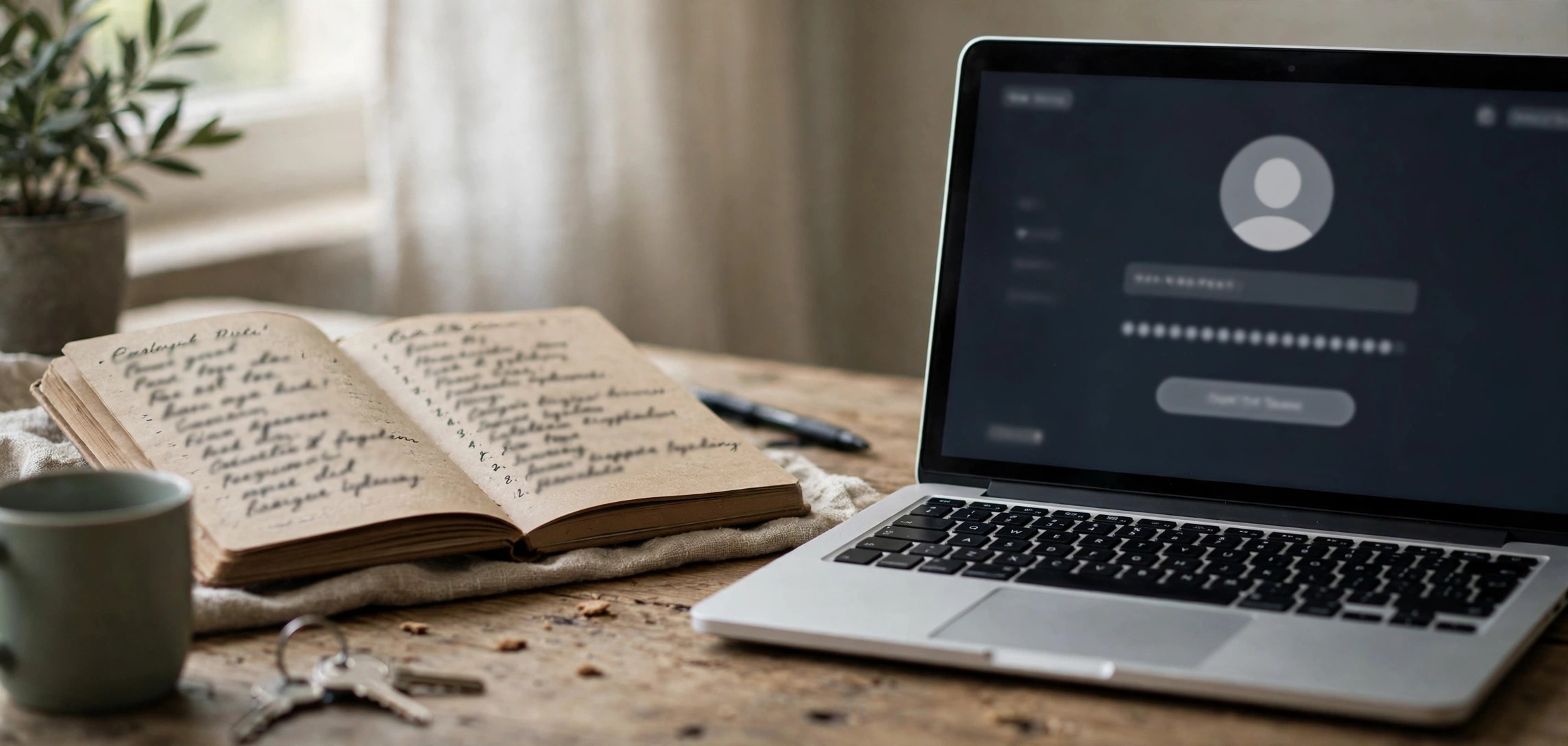
Learning how to create strong passwords you can actually remember solves the dilemma almost everyone faces: passwords need to be long and unpredictable to resist attacks, but human memory struggles with random strings of characters. The good news is that you do not have to choose between security and memory. With the right techniques, you can build passwords that are both genuinely hard to crack and surprisingly easy to recall. This guide walks through seven proven methods, explains what makes a password strong in the first place, and shows you how to manage dozens of unique passwords without writing them on sticky notes.
Table of Contents
- What Actually Makes a Password Strong
- Method 1: Build a Passphrase from Random Words
- Method 2: Turn a Sentence into a Password
- Method 3: Use the Story Method
- Method 4: Let a Password Manager Remember for You
- Method 5: Create a Personal Password Formula
- Method 6: Upgrade Substitutions the Smart Way
- Method 7: Pair Passwords with Two-Factor Authentication
- Password Habits That Keep You Safe
- Frequently Asked Questions
- Conclusion
What Actually Makes a Password Strong
Password strength comes down to one thing: entropy, which is a measure of how many guesses an attacker would need to crack it. Every character you add multiplies the number of possible combinations, which is why length matters far more than complexity. A 20-character passphrase made of ordinary words can take centuries to brute-force, while an 8-character password with symbols can fall in hours.
Attackers rarely guess passwords by hand. They use automated tools that try billions of combinations per second, plus dictionaries of common passwords, leaked password databases, and predictable patterns like “Password123!” or “Qwerty2024”. Any password that appears on a leaked list is effectively worthless, no matter how complex it looks.
This is why the modern advice from security experts has shifted. Instead of short, tortured strings like “P@ssw0rd!”, experts now recommend long, unique passphrases: four or more random words strung together. They are easier to type, easier to remember, and dramatically harder to crack. The U.S. National Institute of Standards and Technology updated its guidance years ago to favor length over forced complexity, and the security community has followed.
One more critical point: a strong password is useless if you reuse it. If you use the same excellent password on twenty sites and one of them suffers a breach, attackers will try that password everywhere else in seconds. Uniqueness matters as much as strength. If you have not checked whether your credentials are already floating around in stolen databases, start with our guide on how to check if your email was in a data breach before building new passwords.
Method 1: Build a Passphrase from Random Words
The passphrase method is the single best technique for most people. Pick four to six random, unrelated words and join them together. For example: “correct horse battery staple” became famous as an illustration, but you should generate your own, such as “guitar comet lantern velvet” or “orchid thunder napkin river”.
The key word is random. Do not pick words that form a meaningful phrase about your life, because attackers mine social media for exactly that kind of information. “Mumbai cricket monsoon dad” is weaker than it looks if your profiles mention all four. Use a dice-based word list or a passphrase generator to get truly random selections, then memorize the result.
Why does this work so well? Each word adds roughly 13 bits of entropy if drawn from a standard word list, so five words give you about 65 bits. That means an attacker would need to try roughly 36 quadrillion combinations. At billions of guesses per second, that is still centuries of work. And unlike “K7#mQ2!xZ9”, you can actually picture a guitar, a comet, a lantern, and velvet in your head, which makes memorization natural.
To type it easily, join the words with a memorable separator or just run them together. Adding one number or symbol somewhere in the middle satisfies sites with complexity requirements without hurting memorability much.
Method 2: Turn a Sentence into a Password
Take a sentence only you would say, and convert it into a password using the first letter of each word. A sentence like “My grandmother makes the best mango pickle every December!” becomes “Mgm tbmped!” with a small tweak or two. Then add a number that is meaningful only to you, inserted in the middle rather than at the end.
The strength here comes from length and personal obscurity. A 14-character result built from a private sentence resists dictionary attacks because it does not resemble any word, and it resists targeted guessing because nobody else knows your sentence. The Electronic Frontier Foundation has long recommended this sentence-based approach in its security guides.
Make the sentence vivid and specific. Generic sentences like “I love to travel the world” are weaker because millions of people could say them. “The stray cat ate my samosa at Jaipur station” is far better: specific, visual, and yours alone. Just avoid sentences built from facts posted on your social media profiles.
Method 3: Use the Story Method
Human memory is built for stories, not strings. The story method turns a password into a tiny scene you can replay in your mind. Suppose your passphrase words are “tiger”, “umbrella”, “piano”, and “volcano”. Picture a tiger holding an umbrella while playing a piano on the edge of a volcano. That absurd image sticks in memory far better than the letters themselves.
This technique, sometimes called the memory palace or visual association method, works because the brain encodes bizarre, emotionally charged images much more durably than abstract text. Spend thirty seconds visualizing the scene when you create the password, and you will likely remember it for months without writing it down.
The story method pairs perfectly with the passphrase method. Generate random words, invent the strangest story connecting them, and you get a password that is both high-entropy and genuinely memorable. Practice typing it a few times over the first two days to lock in the muscle memory, then the recall becomes automatic.
Method 4: Let a Password Manager Remember for You
The honest truth is that the best system is one where you only memorize one password: your password manager’s master password. The manager then generates and stores a unique, 20-plus-character random password for every site you use. You never need to remember, type, or even see those passwords.
Modern password managers like Bitwarden, 1Password, and Apple’s built-in password manager sync across your phone, tablet, and computer, autofill logins securely, and warn you about reused or breached passwords. They encrypt your vault so strongly that even the company cannot read it. For your master password, use Method 1 or 2 above: a long passphrase you can remember, since it protects everything else.
Some people hesitate to put all their passwords in one place. Consider the alternative: reusing a handful of passwords across dozens of sites, which is exactly what credential-stuffing attacks exploit. A password manager with a strong master password and two-factor authentication is far safer than any memory-based system spread across the whole internet.
Method 5: Create a Personal Password Formula
A password formula is a private recipe you apply differently to each site. For example: take a base phrase, then add the first two and last two letters of the site name, then a fixed number and symbol. So your formula might turn “riverstone” plus Amazon into something like “riverstoneAm94!on”.
The advantage is uniqueness with memorability: you only remember the recipe, and each site gets a different password automatically. The danger is that if someone discovers your formula from two leaked passwords, they can derive the rest. To reduce that risk, make the formula non-obvious (do not just append the site name in plain text) and use it only for low-importance accounts, keeping a password manager for banking, email, and anything financial.
Think of formulas as a stepping stone. They are vastly better than reusing one password everywhere, and they work well while you transition to a full password manager setup.
Method 6: Upgrade Substitutions the Smart Way
You have probably seen basic substitutions: “a” becomes “@”, “e” becomes “3”, “o” becomes “0”. Attackers know all of these, and their cracking tools apply them automatically, so “P@ssw0rd” falls instantly. But substitutions still have a place when used as a finishing touch on an already-strong base, not as the strength itself.
The right way to use them: start with a long passphrase or sentence-derived password, then apply unusual, personal substitutions in a couple of spots. Replace a letter with a symbol in a way only you would choose, or capitalize letters in an irregular pattern you can remember. These tweaks add a little entropy and satisfy complexity rules on sites that demand symbols and mixed case.
Never build a password’s entire strength from substitutions on a dictionary word. “Tr0ub4dor&3” looks strong and is famously weak. Length and randomness do the real work; substitutions are just seasoning.
Method 7: Pair Passwords with Two-Factor Authentication
This is not a password-creation method, but it is the most powerful password upgrade available. Two-factor authentication means that even if someone steals your password, they still cannot log in without a second factor: a code from an authenticator app, a hardware security key, or a biometric confirmation.
Enable 2FA on your email account first, because email is the master key to password resets everywhere else. Then add it to banking, social media, and cloud storage. Prefer authenticator apps or hardware keys over SMS codes, which can be intercepted through SIM-swapping. Think of 2FA as a deadbolt on top of your lock: the password keeps casual intruders out, and the second factor stops the determined ones.
With 2FA enabled on important accounts, even a merely decent password becomes very hard to exploit. That said, keep building strong unique passwords anyway, because not every service offers 2FA, and defense in depth is the whole game.
Password Habits That Keep You Safe
- Never reuse passwords across important accounts. Email, banking, and primary social accounts each deserve a unique password. Reuse is the number one way strong passwords fail.
- Change passwords after breaches, not on a schedule. Forced 90-day rotations just produce weaker passwords. Change immediately when a breach, alert, or suspicious login tells you to.
- Do not share passwords over messages or email. If you must share access, use your password manager’s secure sharing feature or a service account instead.
- Beware of fake login pages. The strongest password in the world does not help if you type it into a phishing site. Check the URL before signing in, especially from email links.
- Keep your recovery options current. An outdated recovery phone number can lock you out permanently. Review recovery email and phone settings once a year. If you ever need them, our guide on recovering permanently deleted Gmail emails explains what recovery can and cannot do.
- Audit yearly. Once a year, run your password manager’s security report, fix reused and weak passwords, and delete accounts you no longer use. Fewer accounts mean fewer breach targets.
Quick-Start Checklist: Upgrade Your Passwords Today
If you want results in the next thirty minutes, work through this list in order.
- Check for existing breaches. Run your email through Have I Been Pwned to see which passwords are already compromised.
- Install a password manager. Pick a reputable one, create your account, and generate a long passphrase as your master password.
- Secure email first. Change your primary email password to a unique passphrase and enable two-factor authentication.
- Fix banking and financial accounts next. Give each one a unique generated password plus two-factor authentication.
- Work through the rest gradually. Change remaining passwords over the next week, starting with social media and shopping sites.
- Delete what you do not need. Close old accounts you no longer use to shrink your breach exposure permanently.
Frequently Asked Questions
How long should a strong password be?
Aim for at least 16 characters for important accounts, and longer is always better. Four to six random words (a passphrase) typically lands in the 25 to 40 character range, which is excellent. Length beats complexity every time.
Are password managers safe to use?
Yes. Reputable password managers use strong encryption (typically AES-256) with a master password only you know, so even the company cannot access your vault. They are far safer than reusing passwords or storing them in notes, spreadsheets, or browsers without a master password.
Is it bad to write down my passwords?
Writing down a strong master password and keeping it somewhere physically secure (like a locked drawer or safe) is actually reasonable, and security experts consider it better than reusing a weak password. What you should never do is store passwords in plain text on your phone, in email drafts, or on sticky notes at your desk.
How often should I change my passwords?
Only when there is a reason: a breach involving that service, a suspicious login alert, or sharing the password with someone. Routine forced changes lead to weaker passwords. Focus instead on making each password unique from the start.
What is the most common password mistake?
Reuse. Studies consistently find that most people reuse passwords across multiple sites. Attackers count on this with credential stuffing attacks. One unique password per site eliminates the entire category of attack.
Should I use biometrics instead of passwords?
Biometrics (fingerprint, face unlock) are a convenient second factor and a fine way to unlock your password manager, but they should not be your only protection. You cannot change your fingerprint if it is compromised, so keep strong passwords as the foundation and use biometrics for convenience.
Conclusion
Creating strong passwords you can actually remember comes down to working with your memory instead of against it. Use long passphrases built from random words, turn private sentences into passwords, or anchor them with vivid stories. Reserve your memorization energy for one excellent master password and let a password manager handle the rest. Add two-factor authentication to your most important accounts, never reuse passwords across sites, and check periodically whether your credentials have appeared in breaches. Do these things and you will have better password security than the vast majority of internet users, without the daily frustration of forgotten logins.






