
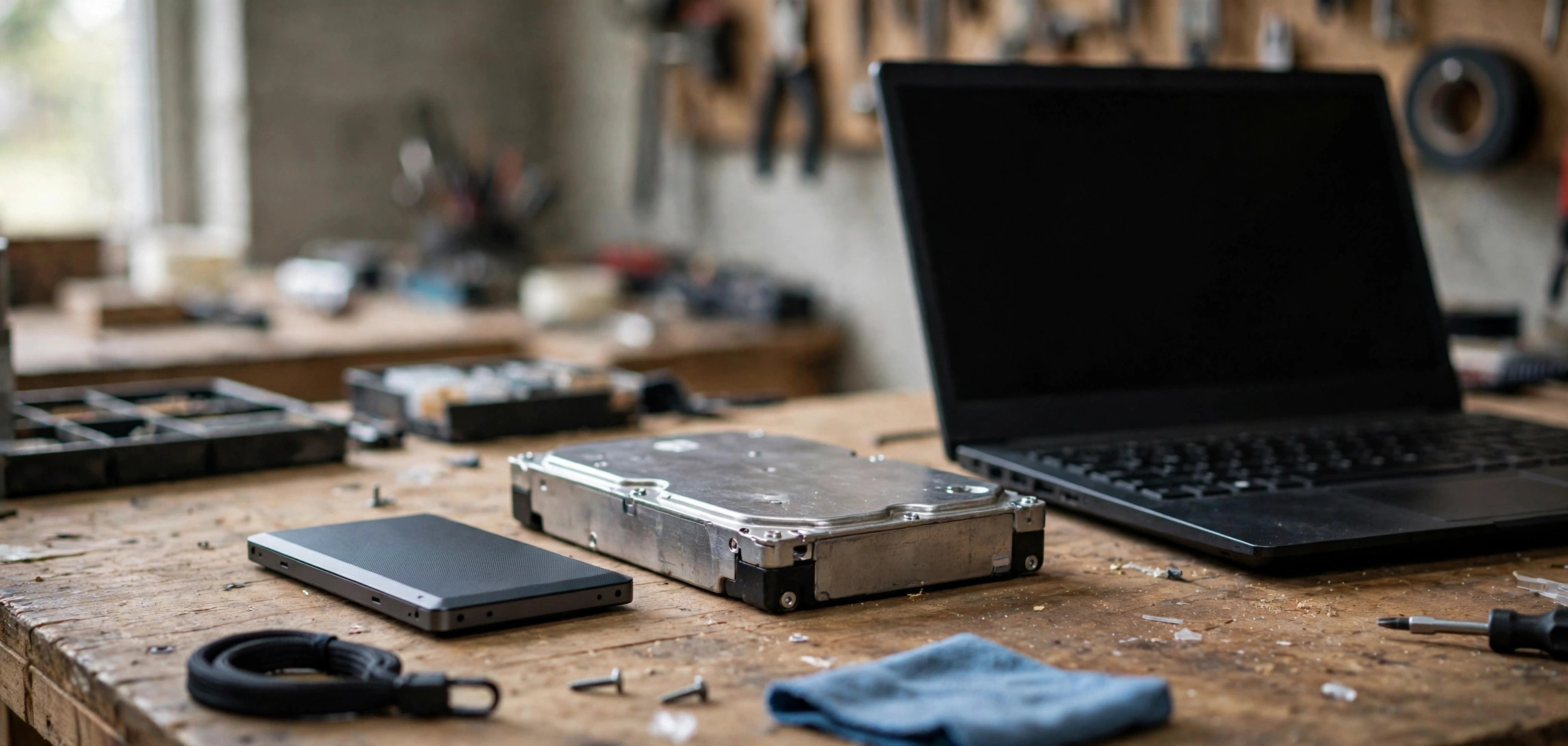
Choosing an SSD vs HDD which is better for everyday laptop use is one of the highest-impact decisions you can make when buying or upgrading a laptop in 2026. The storage drive determines how fast your laptop boots, how quickly apps open, and how the whole machine feels day to day. A solid-state drive (SSD) stores data on flash memory chips with no moving parts, while a hard disk drive (HDD) stores data on spinning magnetic platters. That single engineering difference ripples through speed, durability, battery life, noise, capacity, and price. This guide compares them head to head so you can pick the right drive with confidence.
Table of Contents
- How SSDs and HDDs Work
- Speed: The Difference You Feel Every Day
- Durability and Reliability
- Battery Life, Noise, and Heat
- Capacity and Price in 2026
- Which Should You Buy for Everyday Laptop Use?
- The Hybrid Option: SSD + HDD Together
- Upgrading an Old Laptop from HDD to SSD
- Frequently Asked Questions
- Conclusion
How SSDs and HDDs Work
A hard disk drive is a miniature mechanical marvel. Inside the sealed case, one or more magnetic platters spin at 5,400 or 7,200 revolutions per minute while a read/write head floats nanometers above the surface on an actuator arm, darting back and forth to find your data. Every file access involves physical movement: the platter must rotate to the right spot and the arm must swing to the right track. This mechanical dance is the fundamental speed limit of the HDD.
A solid-state drive has no moving parts at all. It stores data in NAND flash memory chips, the same basic technology as a USB stick or memory card, managed by a controller that maps logical addresses to physical cells electronically. Accessing any piece of data takes the same tiny fraction of a millisecond regardless of where it lives on the drive. There is nothing to spin up, nothing to seek, nothing to wait for.
SSDs connect to laptops through different interfaces that affect their speed ceiling. Older or budget SSDs use SATA, the same interface as HDDs, topping out around 550 MB/s. Modern laptops use NVMe SSDs that connect over PCIe lanes, reaching 3,500 MB/s on PCIe 3.0, 7,000 MB/s on PCIe 4.0, and beyond 10,000 MB/s on PCIe 5.0 drives. Even a basic SATA SSD, though, feels transformative compared to any HDD, because the real-world bottleneck for everyday tasks is access time, not sequential throughput.
Understanding this mechanical versus electronic difference makes every other comparison in this guide intuitive. Speed, durability, noise, and power consumption all follow directly from whether anything inside the drive has to move.
Speed: The Difference You Feel Every Day
Speed is the reason SSDs won the laptop market, and it is the comparison that matters most for everyday use. The numbers are stark.
Boot time. A laptop with an NVMe SSD typically boots to a usable desktop in 10 to 20 seconds. The same machine with a 5,400 RPM HDD often takes 60 to 90 seconds, and can stretch past two minutes once the drive fills up and fragments. That difference greets you every single morning.
App launching. Browsers, office apps, and photo editors open in one to three seconds on an SSD versus five to fifteen seconds on an HDD. It sounds small per app, but across dozens of launches a day, it adds up to a laptop that feels snappy versus one that feels tired.
File operations. Copying a 10 GB folder takes roughly half a minute on a decent NVMe SSD and several minutes on an HDD. Searching for files, opening large documents, and loading game levels all show similar gaps.
Multitasking. This is where HDDs suffer most. An SSD handles dozens of simultaneous read and write requests gracefully. An HDD, with its single mechanical head, queues them up, which is why an HDD laptop freezes for seconds when Windows Update, antivirus, and your browser all hit the disk at once. If your laptop stutters during routine multitasking, the drive is usually the culprit. For related performance troubleshooting, see our guide on fixing a PC that turns on with no display, which covers hardware diagnosis basics that apply to storage issues too.
The honest summary: for everyday laptop use, an SSD does not make things slightly faster. It makes the entire computer feel like a different, much newer machine.
Durability and Reliability
Laptops move around, get bumped, and occasionally fall off couches. Here the SSD’s lack of moving parts is a decisive advantage. A sharp jolt while an HDD is writing can cause the head to contact the platter, a head crash that can destroy data and kill the drive. SSDs simply do not have this failure mode; you can shake a running SSD all day without mechanical risk.
HDDs do have one durability argument in their favor: when they fail, they often fail gradually, with warning signs like clicking sounds or increasing bad sectors, and data recovery specialists have decades of experience pulling data off dead platters. SSD failures tend to be sudden and electronic, and recovery is harder and more expensive.
SSDs have their own wear mechanism. Each flash memory cell survives a finite number of write cycles, measured by the drive’s TBW (terabytes written) rating. In practice, this is a non-issue for everyday use: a typical 500 TBW drive would require writing hundreds of gigabytes daily for years to wear out. Normal browsing, office work, and media consumption barely scratch these ratings. Modern SSDs also include over-provisioning and wear-leveling algorithms that spread writes evenly across cells.
For a laptop that travels, the verdict is clear. The SSD’s immunity to shock damage outweighs everything else. Back up important data regardless of drive type, because every storage device can fail, but expect fewer failures from SSDs in mobile use.
Battery Life, Noise, and Heat
SSDs consume significantly less power than HDDs. An HDD’s spinning motor draws power continuously whenever the drive is active, typically 6 to 7 watts under load. An SSD idles at a fraction of a watt and peaks around 2 to 3 watts during heavy transfers. In real laptop use, switching from HDD to SSD typically adds 30 to 60 minutes of battery life, with the exact gain depending on how disk-intensive your workload is.
Noise is another clear win. HDDs produce audible spinning and seeking sounds: the faint whir and occasional clicking that anyone who used a laptop in the 2010s remembers. In a quiet room, an active HDD is noticeable. SSDs are completely silent. There is literally nothing inside to make a sound.
Heat follows the same pattern. The HDD motor generates constant warmth, contributing to overall system temperature and forcing cooling fans to work harder. SSDs run cooler, which means quieter fans and a more comfortable lap. High-performance NVMe drives can get hot under sustained heavy writes, but for everyday laptop tasks they stay well within comfortable limits.
These quality-of-life differences add up. A silent, cool, longer-lasting laptop is simply more pleasant to use, and the SSD is a big part of that equation.
Capacity and Price in 2026
This is the one category where HDDs still hold ground: cost per gigabyte. As of 2026, a 1 TB HDD for laptops (2.5-inch) typically costs a fraction of a 1 TB NVMe SSD, and HDDs remain the cheapest way to buy multiple terabytes of storage. If you need 4 TB of local storage for a video archive on a tight budget, the HDD’s price advantage is real.
But the gap has narrowed dramatically. SSD prices have fallen steadily for years, and 500 GB to 1 TB NVMe SSDs, the sweet spot for everyday laptops, are now affordable enough that manufacturers include them even in budget machines. The price premium for an SSD over an HDD at 512 GB is small enough that it is almost always worth paying.
Consider total value, not just the sticker price. An SSD extends a laptop’s useful life by years because the machine stays responsive as software grows heavier. A cheap HDD laptop that feels sluggish in year two often gets replaced early, wiping out any initial savings. When you factor in the usable lifespan, the SSD is usually the cheaper choice.
For context on evaluating used machines, where drive type heavily affects both price and remaining life, read what to check before buying a second-hand laptop. The storage drive is one of the first things to inspect on any used machine.
Which Should You Buy for Everyday Laptop Use?
For everyday laptop use in 2026, buy the SSD, without hesitation. Web browsing, office work, streaming, video calls, photo management, and light creative work all run dramatically better on solid-state storage. There is no everyday scenario where an HDD laptop is the better experience.
Here is a practical buying guide by profile:
- Students and office workers: A 512 GB NVMe SSD is the sweet spot. It holds the OS, apps, documents, and a healthy media library with room to spare. Do not accept an HDD in a new laptop at any price.
- Casual home users: 512 GB SSD minimum; 1 TB if you keep lots of photos and videos locally. Pair with cloud backup for anything irreplaceable.
- Creative work (photo/video editing): 1 TB NVMe SSD minimum, preferably a fast PCIe 4.0 drive. Large media files punish slow storage mercilessly, and scratch disks on SSDs transform editing responsiveness.
- Budget buyers: A 256 GB SSD laptop beats a 1 TB HDD laptop every time for daily usability. Add an external HDD later for cheap bulk storage if you need the space.
- Media hoarders: This is the one case for a hybrid approach (see below): a modest SSD for the system plus a large HDD for the archive.
The market has already decided. Virtually every laptop worth buying in 2026 ships with an SSD as standard; HDDs survive mainly in the cheapest configurations and as secondary drives. If you find a “deal” on an HDD laptop, it is not a deal.
The Hybrid Option: SSD + HDD Together
Some laptops, especially larger 15 and 17-inch models, have room for two drives, and this unlocks the best of both worlds. Install a fast NVMe SSD as the primary drive for Windows, apps, and active projects, and add a large HDD as secondary storage for movies, backups, and archives you rarely touch.
This setup gives you SSD speed where it matters (boot, apps, daily files) and HDD economy where speed does not matter (cold storage). It is the classic enthusiast configuration and remains sensible in 2026 for anyone who needs terabytes on a budget.
Avoid the older SSHD (hybrid drive) products that cram a small flash cache into an HDD. They were a compromise from the era when SSDs were expensive, and they deliver neither the full speed of an SSD nor the full capacity value of an HDD. In 2026, with SSD prices where they are, SSHDs are obsolete.
Upgrading an Old Laptop from HDD to SSD
The single best upgrade for an aging HDD laptop is swapping in an SSD. It is cheaper than a new laptop and often delivers a bigger perceived speedup than any other single change. Here is how to do it safely.
- Check compatibility. Look up your laptop model’s specs to see whether it takes a 2.5-inch SATA SSD, an M.2 SATA SSD, or an M.2 NVMe SSD. Most laptops from the last decade accept at least a 2.5-inch SATA drive.
- Pick the right SSD. For everyday use, any reputable 500 GB or 1 TB SSD works. NVMe if your slot supports it, SATA otherwise. Do not overspend on flagship speeds for basic tasks; even a budget SSD transforms an HDD machine.
- Back up everything first. Copy your important files to an external drive or cloud storage. Verify the backup before touching the old drive.
- Clone or fresh-install. Cloning software copies your existing Windows installation to the new SSD, preserving everything. A fresh Windows install is cleaner but requires reinstalling apps. Cloning is easier; fresh install performs slightly better.
- Swap the drives. Power down, remove the battery if it is removable, open the service panel, unscrew the old HDD caddy, and install the SSD in its place. Keep track of screws; laptop screws are tiny and easy to lose.
- Boot and verify. Power on, confirm Windows boots from the SSD, and check that all your files and apps are present. Run a quick speed test to confirm the drive performs as expected.
- Repurpose the old HDD. Put it in an inexpensive USB enclosure for backups or extra storage. Do not throw away a working drive.
One caution: some ultra-thin laptops have soldered storage that cannot be upgraded. Check your model’s service manual before buying an SSD. If the drive is soldered, your only path to SSD speed is a new machine.
Frequently Asked Questions
Is SSD better than HDD for a laptop?
Yes, for everyday laptop use an SSD is better in almost every way: much faster boot and app loading, silent operation, better shock resistance, lower power consumption, and less heat. HDDs only win on cost per gigabyte for very large capacities.
How long do SSDs last compared to HDDs?
For typical everyday use, SSDs last as long as or longer than HDDs. Their rated write endurance (TBW) far exceeds what normal browsing, office work, and media consumption generate. HDDs face mechanical wear and shock damage that SSDs avoid entirely. Either way, keep backups.
Can I replace my laptop HDD with an SSD myself?
Usually yes, if the drive is not soldered. Most laptops use standard 2.5-inch SATA or M.2 slots accessible under a service panel. The job needs only a small screwdriver and about 30 minutes. Check your model’s manual first to confirm the drive type and access procedure.
Is 256 GB SSD enough for everyday use?
It is workable but tight. Windows plus essential apps consume a large chunk, leaving limited room for files. 512 GB is the comfortable minimum for most people in 2026. If 256 GB is all the budget allows, plan on cloud storage or an external drive for overflow.
Do SSDs slow down when full?
They can. SSDs need free space for wear leveling and background maintenance; performance may dip when the drive is more than about 80 to 90 percent full. Keep at least 15 to 20 percent free for best performance and longevity.
Are external SSDs worth it over external HDDs?
For portable use, absolutely. External SSDs are smaller, silent, shock-resistant, and several times faster, which matters for running apps or editing files directly from the drive. External HDDs still make sense for cheap, large, stationary backups that sit on a desk.
Conclusion
In the SSD vs HDD debate for everyday laptop use, the SSD wins decisively in 2026. It boots in seconds, launches apps instantly, survives bumps that would kill a hard drive, sips power, and runs silent. The HDD’s only remaining advantage is cheaper bulk capacity, which matters for archives but not for the drive your operating system lives on. Buy a laptop with at least a 512 GB NVMe SSD, consider a two-drive hybrid setup only if you need terabytes cheaply, and if you are nursing an old HDD laptop, an SSD swap is the most transformative upgrade money can buy. Your laptop will feel brand new, because in the ways that count, it will be.




