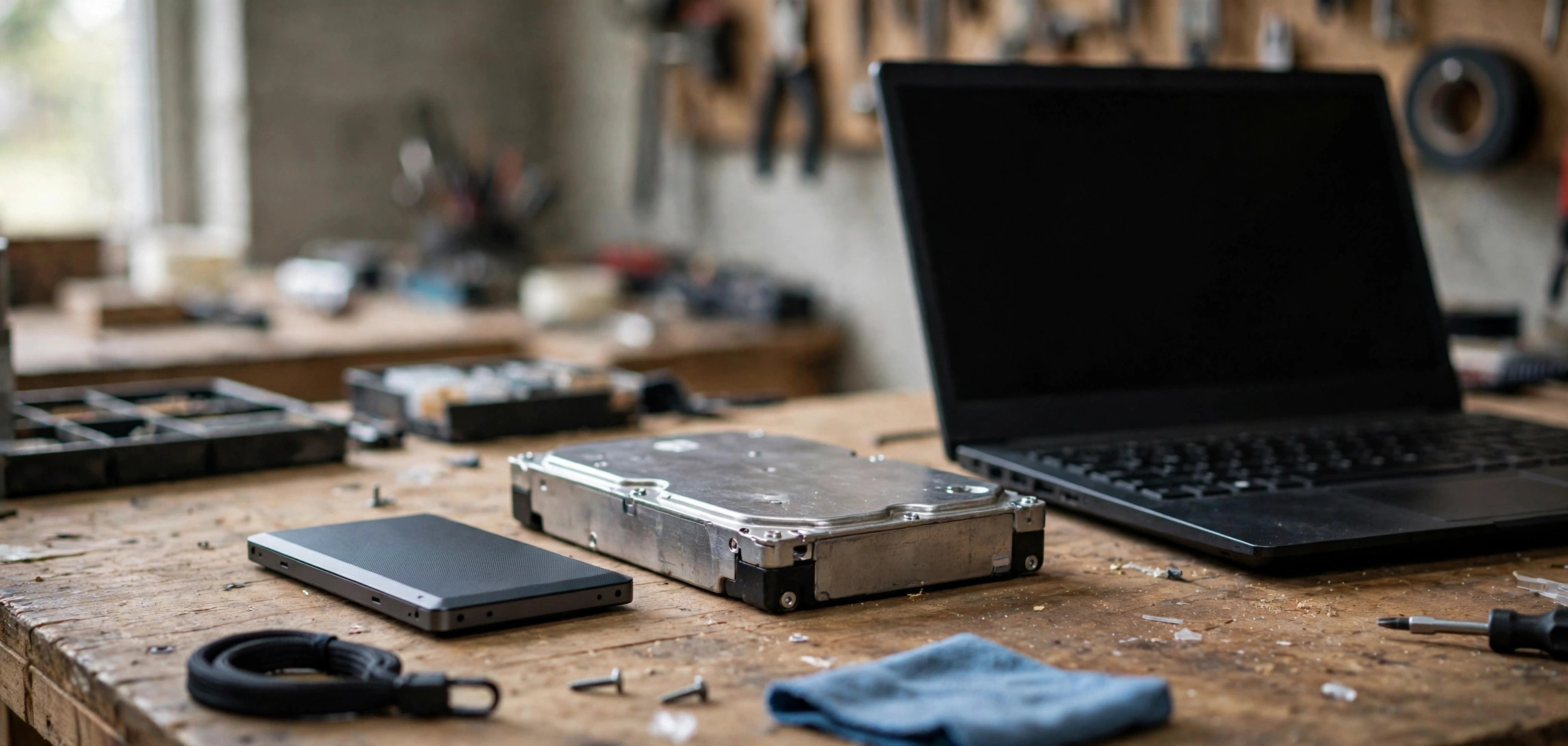
A used laptop can be one of the smartest tech purchases you make — or one of the most expensive mistakes. Knowing what to check before buying a second hand laptop is the difference between scoring a fast, reliable machine for half the retail price and inheriting someone else’s problems: a dying battery, a failing drive, or a motherboard fault that appears a week after the sale. This checklist covers every check that matters, in the order you should run them.
Work through these checks before money changes hands, whether you are buying from a friend, a marketplace seller, or a refurbisher. Most take only a few minutes each, and together they reveal nearly everything about the machine’s true condition. Bring a USB drive with a few free diagnostic tools, your phone for photos, and enough time to test properly — rushing is how bad purchases happen.
Table of Contents
- Why You Need a Checklist, Not Just a Good Price
- 1. Physical Condition: Body, Hinges, and Ports
- 2. Display: Dead Pixels, Backlight, and Hinges
- 3. Keyboard, Trackpad, and Webcam
- 4. Battery Health and Charging
- 5. Verify the Real Specifications
- 6. Storage Health: SSDs and Hard Drives
- 7. Thermals, Fans, and Noise
- 8. Operating System, Activation, and Bloatware
- 9. Ownership, Theft, and Firmware Locks
- 10. Price It Right and Negotiate
- The 15-Minute Final Checklist
- Frequently Asked Questions
- Conclusion
Why You Need a Checklist, Not Just a Good Price
A laptop’s asking price tells you nothing about its remaining lifespan. Two identical-looking machines can differ enormously: one was a desk-bound office laptop with 200 battery cycles, the other ran hot in a backpack for four years with a failing SSD. Sellers — even honest ones — often do not know their machine’s hidden wear. A systematic check replaces guesswork with evidence.
The stakes are higher with laptops than with most used electronics because repairs are expensive and sometimes impossible. A soldered SSD or glued-in battery can turn a minor fault into a total loss. Spending twenty minutes on this checklist before buying is the cheapest insurance in tech.
1. Physical Condition: Body, Hinges, and Ports
Start with the outside. Dents on corners suggest drops, and drops damage more than the case — they crack solder joints and loosen internal connectors. Open and close the lid slowly: it should move smoothly with even resistance, and the screen should stay put at any angle. Loose or creaking hinges are a common failure point and an expensive repair on many models.
Inspect every port. Plug in a USB drive, an HDMI cable if you have one, and the charger — wiggle each connector gently. A port that only works at certain angles has a cracked solder joint. Check the charging port especially: it takes the most abuse and is soldered to the motherboard on most modern laptops. Look at the rubber feet and screws too — missing screws or mismatched screw heads mean someone has opened the machine, which is worth asking about.
2. Display: Dead Pixels, Backlight, and Hinges
The screen is the most expensive single component to replace, so examine it carefully. Open a full-screen white image and look for dead pixels (tiny black dots) and discoloration; then a full-screen black image in a dim room to spot backlight bleed (glowing patches around the edges) and bright spots. A few dead pixels may be tolerable at a discount, but clusters or lines across the screen mean the panel is failing.
Test brightness at minimum and maximum, and confirm the screen does not flicker at low brightness — flicker can indicate a failing backlight or a cheap replacement panel. Gently flex the lid corners while the screen is on; if the image distorts or cuts out, the display cable is damaged. Also verify the webcam and microphone with a quick video call test, since these sit in the same assembly.
3. Keyboard, Trackpad, and Webcam
Open a text editor and press every single key, including function keys and modifiers. Sticky, unresponsive, or double-typing keys are common on used laptops, and on many thin models the entire keyboard is riveted in — replacement means a costly top-case swap. Test key backlighting at all levels if the laptop has it.
Run your finger across the whole trackpad surface checking for dead zones, and test single clicks, double clicks, right clicks, and two-finger scroll. A trackpad that clicks unevenly or has a “mushy” spot may have a swollen battery pressing up from underneath — which is both a defect and a safety issue. Confirm the webcam produces a clear image and the microphone records cleanly.
4. Battery Health and Charging
Battery wear is the most predictable form of laptop aging. On Windows, generate a battery report: open Command Prompt and run powercfg /batteryreport, then open the HTML file it creates. Compare “Design Capacity” with “Full Charge Capacity” — a battery holding less than 80% of its design capacity is significantly worn. Also check the cycle count; several hundred cycles is normal for a few years of use, but over a thousand suggests heavy wear.
On a Mac, check System Settings > Battery for maximum capacity and cycle count, and note whether macOS reports “Service Recommended.” Then unplug the charger and watch the battery drain for ten minutes under light use — a healthy battery drops a few percent; a dying one can plummet. Also confirm the laptop charges with its original-spec charger and that third-party chargers are not the only option — some laptops throttle performance or refuse to charge properly without the right wattage.
5. Verify the Real Specifications
Never trust the listing alone — verify the actual hardware. On Windows, check Settings > System > About for the processor and installed RAM, and Task Manager > Performance for details. On macOS, use About This Mac. Confirm the CPU model, RAM amount and speed, storage size, and GPU match what was advertised.
This step catches the most common listing lie: machines advertised with specs they do not have. Also check whether RAM and storage are upgradeable — many ultrabooks solder both, meaning what you see is what you get forever. If you are deciding between storage types for your next machine, our guide on SSD vs HDD for everyday laptop use explains why an SSD is non-negotiable in 2026. A used laptop with a spinning hard drive as its only storage will feel slow no matter how good the CPU is.
6. Storage Health: SSDs and Hard Drives
A failing drive can take your data with it, so check drive health before you buy. On Windows, free tools like CrystalDiskInfo read the drive’s S.M.A.R.T. data and show a plain-English health status — “Good” is what you want; “Caution” or “Bad” means walk away or demand a steep discount. Pay attention to reallocated sector counts and, on SSDs, the percentage of life remaining.
On a Mac, Disk Utility’s First Aid can verify the volume, though it shows less detail. Also run a quick real-world test: copy a large file and time it. An SSD that crawls at hard-drive speeds may be nearly worn out or thermally throttling. Ask the seller how full the drive has been kept — SSDs that have run nearly full for years wear faster. If the drive is unhealthy but everything else is perfect, factor a replacement SSD into your offer price; they are cheap and easy to swap on many models.
7. Thermals, Fans, and Noise
Overheating kills laptops slowly. With the machine idle on a desk, listen: fans should be quiet or off. Then put it under load — open several browser tabs with video, or run a free stress test — and watch what happens. Fans will spin up, which is normal, but grinding, rattling, or clicking noises mean failing bearings. Excessive heat on the keyboard or underside during light use suggests dried-out thermal paste or clogged vents.
Use a free monitoring tool like HWMonitor (Windows) or Macs Fan Control (macOS) to read actual CPU temperatures. Sustained temperatures above 95°C under load indicate a cooling problem. Check the vents for dust buildup — heavy dust is cleanable, but it also hints the machine was never maintained. A laptop that thermal-throttles will feel sluggish despite good specs, so this check directly affects the performance you are paying for.
8. Operating System, Activation, and Bloatware
Confirm the operating system is genuine and activated: on Windows, Settings > System > Activation should show “Windows is activated.” An unactivated or pirated copy is a red flag about the seller and leaves you without security updates. On a Mac, verify the machine is not enrolled in any device management (check System Settings for Profiles) — a management profile means the laptop belongs to a company or school and should not be sold.
Ask the seller to factory-reset the machine before you take it, and watch the first-boot setup complete. This confirms there are no firmware passwords, no hidden admin accounts, and no “phone home” management software. After reset, check that all drivers installed correctly — missing Wi-Fi or audio drivers after a reset can signal hardware the OS cannot see.
9. Ownership, Theft, and Firmware Locks
Just like phones, laptops can be stolen, company-owned, or firmware-locked. Ask for the original purchase receipt or invoice — legitimate sellers usually have it. Check the BIOS/UEFI for supervisor passwords or Computrace-style theft-protection enrollment, which can lock or track the machine remotely. On Windows, the serial number in the BIOS should match the sticker on the chassis.
For Macs, ensure the previous owner has removed the device from their Apple ID (no Activation Lock on Macs with Apple silicon or T2 chip) and turned off Find My Mac. For Chromebooks, confirm the device is not enterprise-enrolled, which would lock it to a school or company. The verification mindset here mirrors phone buying — our guide on how to check if a used iPhone is stolen covers the same principles for mobile devices. If anything about the machine’s ownership feels off, walk away.
10. Price It Right and Negotiate
Research completed listings for the exact model and configuration on marketplaces before you meet the seller — not asking prices, but what units actually sold for. Then adjust for condition: deduct the cost of a battery replacement if health is below 80%, deduct for a worn SSD, and deduct for cosmetic damage. A fair used price for a 2–3 year old laptop in good condition is typically 40–60% of its original retail price, varying by brand and demand.
Use your checklist findings as negotiation leverage, calmly and specifically: “The battery is at 74% health, which is a $80 replacement, so my offer is X.” Sellers respond better to evidence than to lowballing. And set a walk-away price before you arrive — the best deal protection is being willing to leave. There is always another listing.
The 15-Minute Final Checklist
When you meet the seller, run through this condensed sequence. It covers everything above in about fifteen minutes:
- Power on from cold and time the boot — it should take under 30 seconds on an SSD.
- Check specs in Settings/About This Mac against the listing.
- Test the display with white and black full-screen images.
- Type every key and test the trackpad thoroughly.
- Run the battery report (powercfg /batteryreport or macOS Battery settings).
- Check drive health with CrystalDiskInfo or Disk Utility.
- Stress the thermals for five minutes and listen to the fans.
- Test all ports with real cables and drives.
- Connect to Wi-Fi, play audio, test webcam and mic.
- Confirm no firmware locks, management profiles, or iCloud lock — and watch a factory reset complete.
- Verify the serial number matches the chassis and any receipt.
- Agree on price, pay securely, and get a written receipt with the serial number on it.
If the seller rushes you through any of this, that is information too. Patient sellers with good machines welcome inspection.
One more consideration for buyers comparing used options: storage type dramatically affects how a used laptop feels day to day — see SSD vs HDD: which is better for everyday laptop use before you settle on a machine with old spinning storage. The FTC’s consumer guidance on buying second-hand electronics (consumer.ftc.gov) is also worth a skim before any high-value used purchase.
Frequently Asked Questions
What is the most important thing to check on a used laptop?
Battery health and drive health, in that order. Both are wear items that determine how much life the machine has left, both are verifiable in minutes with built-in tools, and both are expensive or impossible to fix on models with sealed designs. A laptop that passes these two checks is usually a safe buy.
How old is too old for a second-hand laptop?
For most buyers, 3–4 years is the sweet spot of value; beyond 5–6 years, even well-kept machines face obsolete Wi-Fi standards, no OS updates, and worn components. Check the manufacturer’s support page for the model’s OS support window — a laptop that cannot run a supported operating system is a security risk regardless of price.
Should I buy a used laptop without seeing it in person?
Only from sellers with strong buyer protection: manufacturer refurbished programs, reputable refurbishers with warranties and return windows, or marketplaces with enforced buyer guarantees. Private remote sales with irreversible payment methods are where most laptop scams happen. If you must buy remotely, pay by credit card and document everything.
Is a used gaming laptop a good buy?
It can be, but gaming laptops live hard lives — sustained heat degrades thermal paste, fans, and batteries faster. Inspect thermals extra carefully, expect a worn battery, and verify the GPU actually works under load with a game or benchmark, not just in Device Manager. Price in a repaste and cleaning.
What paperwork should I get when buying a used laptop?
At minimum, a written receipt with the date, model, serial number, price, and both parties’ names. Ideally also the original purchase invoice and any remaining warranty documentation. The serial number on the receipt protects you if ownership is ever questioned.
Can a used laptop have hidden malware or spyware?
Yes, which is why you should always factory-reset a used laptop yourself (or watch the seller do it) and then install the OS fresh from official media before entering any personal accounts. Never trust a used machine’s existing software installation, no matter how clean it looks.
Conclusion
Buying a second-hand laptop safely is a process, not a gamble: inspect the body and screen, test every input, verify battery and drive health with real data, confirm the specs match the listing, check thermals under load, ensure the OS is genuine and the machine is free of locks, and price your offer on evidence. Run the 15-minute final checklist at every meeting, get everything in writing, and never let urgency override verification. Do that, and a used laptop becomes what it should be — the best value in computing.