
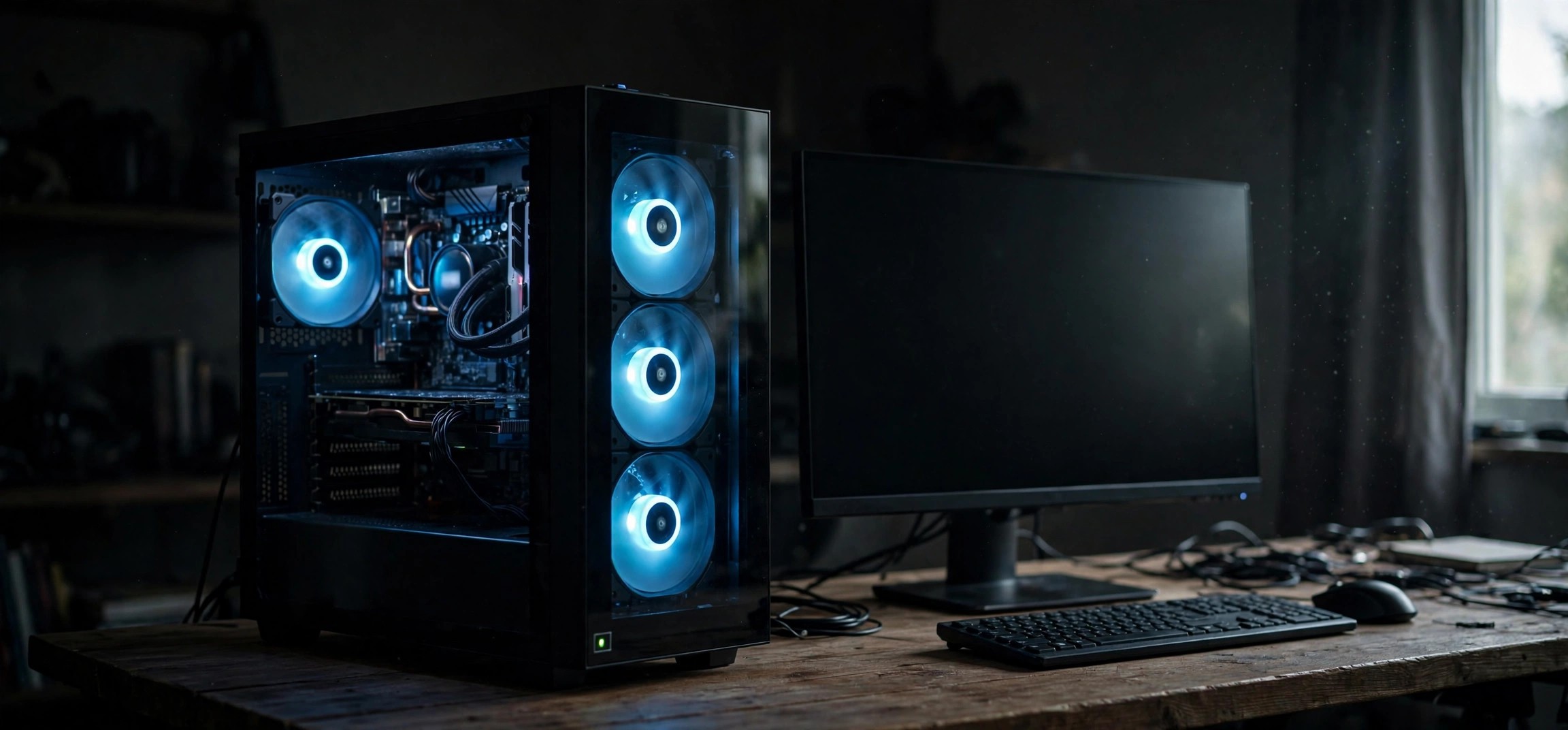
PC Turns On But No Display? Fans Spinning Fix Guide
There are few things more alarming than pressing the power button, hearing the fans spin up, seeing the lights come on, and then staring at a completely black screen. This pc turns on but no display fans spinning fix guide is for exactly that symptom, so take a breath: this is actually good news in disguise. Spinning fans mean the power supply is delivering power and the motherboard is at least partially alive. The problem is almost always in the display chain, the memory, or the graphics output, and it is diagnosable with a systematic approach. This guide walks you through every check in the right order, from the 30-second cable checks to reseating RAM and the GPU, resetting the CMOS, and isolating a failing component.
Table of Contents
- What “Fans Spinning, No Display” Actually Means
- Fix 1: Check the Monitor, Cable, and Input Source
- Fix 2: Hard Power Cycle the PC and Monitor
- Fix 3: Listen for Beep Codes and Watch the LEDs
- Fix 4: Reseat the RAM
- Fix 5: Reseat the Graphics Card
- Fix 6: Reset the CMOS
- Fix 7: Try Integrated Graphics
- Fix 8: Strip Down to a Minimal Boot Configuration
- Fix 9: Check the Power Supply
- Fix 10: Identify a Dead Component
- When to Call a Repair Shop
- FAQs
- Conclusion
What “Fans Spinning, No Display” Actually Means
When you press the power button, the motherboard runs through the Power-On Self-Test (POST). Fans spinning and LEDs lighting up tell you that the PSU is supplying the 12V, 5V, and 3.3V rails and the board is distributing power. But POST can fail silently at several stages: memory training, GPU initialization, or CPU handoff. When it fails, many boards simply halt without ever sending a signal to the monitor.
The key insight is that “no display” does not mean “dead PC.” It means the PC cannot complete the steps needed to produce video output. Roughly speaking, the culprits in order of likelihood are: a display or cable issue, improperly seated RAM, a GPU problem, a corrupted BIOS/CMOS setting, and only then a genuinely dead CPU, motherboard, or PSU. Work through this guide in order and you will find the fault without buying parts you do not need.
Fix 1: Check the Monitor, Cable, and Input Source
Before opening the case, rule out the simplest cause: the PC may be fine and the monitor simply is not showing its signal. This sounds obvious, but it accounts for a large share of “no display” panics.
- Confirm the monitor itself is powered on. Look for its power LED; try its power button and brightness controls.
- Check that the monitor is set to the correct input: HDMI 1, HDMI 2, DisplayPort, or whichever port your cable uses. Cycle through inputs with the monitor’s menu buttons.
- Reseat both ends of the video cable firmly. Unplug it completely, check for bent pins (on VGA/DVI) or debris, then plug it back in until it clicks or screws down snugly.
- Try a different cable if you have one. Cables fail more often than people think, especially adapters.
- Try a different port on the GPU and, if available, a different port on the monitor.
- If possible, test the monitor with another device (a laptop or game console) to confirm the monitor itself works.
One classic trap: plugging the monitor into the motherboard’s video output while a discrete GPU is installed. Most systems disable the motherboard ports when a dedicated GPU is present, so always connect to the graphics card’s ports unless you have deliberately removed the GPU.
Fix 2: Hard Power Cycle the PC and Monitor
Residual charge in capacitors can leave the board or monitor in a confused state where everything powers up but nothing initializes. A full power drain clears it.
- Shut the PC down by holding the power button for 5 to 10 seconds until all fans and lights stop.
- Unplug the PC’s power cable from the wall (and flip the PSU switch off if it has one).
- Unplug the monitor’s power cable too.
- Press and hold the PC’s power button for 15 to 20 seconds to drain residual power.
- Wait a full minute, reconnect everything, and power on the monitor first, then the PC.
This resolves a surprising number of no-display cases, particularly after power outages, failed overclocks, or static discharge events. If the display returns, consider the incident a warning and check your surge protection setup.
Fix 3: Listen for Beep Codes and Watch the LEDs
Your motherboard is probably trying to tell you what is wrong. Many boards emit beep codes through a small onboard speaker, and most modern boards have debug LEDs labeled CPU, DRAM, VGA, and BOOT that light up to show where POST stopped.
- Power on and listen carefully for beeps. One short beep usually means POST passed; repeating long beeps often mean a memory problem; no beeps at all with a connected speaker can mean the CPU is not executing code.
- Look at the motherboard’s debug LEDs (consult your board’s manual for their location). If the DRAM LED stays lit, suspect RAM. If VGA stays lit, suspect the graphics card. If CPU stays lit, suspect the processor or its power connection.
- If your board has a two-digit debug code display, note the code and look it up in the manual.
- Write down exactly which LED stays on. This single observation can shortcut the entire diagnosis.
If you have no speaker and no debug LEDs, do not worry. The hands-on steps below will isolate the fault anyway; the LEDs just make it faster. Motherboard manuals are usually available as PDFs on the manufacturer’s site if you have lost yours.
Fix 4: Reseat the RAM
Improperly seated or dusty RAM is the single most common hardware cause of fans-spinning-no-display. Memory training happens very early in POST, and if it fails, the board halts before the GPU ever initializes, so the screen stays black.
- Power off the PC, unplug it, and hold the power button for 10 seconds to drain residual charge.
- Open the case and ground yourself by touching the metal chassis.
- Locate the RAM sticks. Push the retention clips at both ends of each slot outward to release a stick.
- Remove each stick, inspect the gold contacts for dust or corrosion, and blow out the slot with compressed air (or a firm puff of air; never use a vacuum inside the case).
- Reinstall one stick at a time, pressing firmly and evenly until both clips snap shut on their own. The stick should sit level, with no gold contacts visible.
- Make sure you are using the correct slots for your configuration. For two sticks on a four-slot board, use the slots recommended in the manual, usually the second and fourth from the CPU (A2 and B2).
- Reconnect power and test. If it still fails, try booting with just one stick, testing each stick individually in the primary slot.
Testing sticks one at a time is the definitive RAM test available without spare parts. If the PC boots with stick A but not stick B, you have found your faulty module. If no single stick works in any slot, the problem lies elsewhere.
Clean the Contacts Carefully
If the contacts look tarnished, gently clean them with a soft pencil eraser, then wipe with a dry lint-free cloth. Do not use liquids, and do not touch the contacts with bare fingers afterward, since skin oils accelerate corrosion. This old technician’s trick fixes more “dead” RAM than most people would believe.
Fix 5: Reseat the Graphics Card
A GPU that has crept out of its PCIe slot, especially in systems that get moved or bumped, or heavy cards suffering from sag, can lose contact on some pins while the fans still receive power. The result is exactly our symptom: fans spin, no display.
- With the PC unplugged and drained, locate the graphics card.
- Disconnect its power cables. Note how many PCIe power connectors it uses (6-pin, 8-pin, or multiples) so you reconnect them all.
- Unscrew the bracket holding the card to the case.
- Release the PCIe slot latch (usually a small tab or button at the end of the slot) and pull the card straight out evenly.
- Inspect the PCIe slot for dust and the card’s edge connector for damage.
- Reinsert the card firmly until the latch clicks, reattach the bracket screw, and reconnect every power cable. A GPU with two 8-pin sockets needs both filled; one is not enough.
- Power on and test.
While you are in there, check that the PSU’s PCIe cables, not daisy-chained splitters beyond the card’s rating, are feeding the card. Underpowered GPUs can spin their fans yet fail to initialize.
Fix 6: Reset the CMOS
A corrupted BIOS setting, a failed overclock, or a bad memory timing profile can prevent POST from completing. Resetting the CMOS returns the BIOS to factory defaults. This is also the fix when the PC worked fine until you changed a BIOS setting.
- Unplug the PC and drain residual power as before.
- Find the CMOS battery: a silver coin-cell (CR2032) on the motherboard.
- Remove the battery, wait a full 5 minutes, then reinsert it with the positive side facing up.
- Alternatively, use the CLR_CMOS jumper or button if your board has one: short the jumper pins for 10 seconds per the manual’s instructions.
- Reconnect power and boot. Enter the BIOS (usually Del or F2) to confirm settings are reset, then save and exit.
If your board has dual BIOS or a BIOS flashback feature, a corrupted BIOS can sometimes be reflashed without a display. Check your manual: BIOS Flashback typically needs only power to the board, a USB stick with the renamed BIOS file, and a button press.
Fix 7: Try Integrated Graphics
If your CPU has integrated graphics (most Intel non-F chips and AMD G-series APUs do), you can bypass the discrete GPU entirely to determine whether the card is the problem.
- Power off and unplug the PC.
- Physically remove the discrete graphics card from the PCIe slot.
- Connect your monitor cable to the motherboard’s video output (HDMI or DisplayPort on the rear I/O panel).
- Power on and test.
If you get a display now, the discrete GPU or its slot is the fault. Try the card in a different PCIe slot if one is available, or test it in another PC before declaring it dead. If there is still no display on integrated graphics, the GPU was never the problem, and you can move on knowing that for certain.
Fix 8: Strip Down to a Minimal Boot Configuration
A shorted USB device, a failing drive, or a misbehaving peripheral can stall POST. Stripping the system to its essentials isolates whether an accessory is the culprit.
- Unplug every USB device except the keyboard. Remove external drives, hubs, printers, and especially any recently added hardware.
- Disconnect all internal drives (SATA and NVMe) temporarily. The PC should still reach the BIOS screen without drives.
- Remove any add-in cards other than the GPU: Wi-Fi cards, sound cards, capture cards.
- Leave only the CPU, one RAM stick in the primary slot, and the GPU (or integrated graphics).
- Power on and test. If you get a display, add components back one at a time until the failure returns.
Front-panel USB headers are a notorious hidden cause: a damaged front USB port can short the 5V rail just enough to halt POST. If the minimal boot works outside the case but not inside, try disconnecting the front-panel USB cable from the motherboard.
Fix 9: Check the Power Supply
Spinning fans prove the PSU outputs something, but not that it outputs clean, sufficient power on every rail. A PSU with a failing 12V rail or degraded capacitors can power fans while the CPU and GPU starve.
- Verify the 24-pin ATX connector and the 4/8-pin CPU power connector (top-left of the board) are fully seated. The CPU power connector is the most commonly forgotten cable in new builds.
- Confirm the PSU’s voltage selector (on older units) matches your mains voltage.
- Listen and smell: a high-pitched whine, clicking, or a burnt-electronics smell points to PSU failure. Power off immediately if you smell burning.
- If you have access to a known-good PSU, even a lower-wattage one sufficient for a minimal boot, swap it in and test. This is the definitive PSU test.
- Check the paperclip test only as a rough indicator: it confirms the PSU turns on, not that it delivers stable power under load.
Never open a PSU yourself. The capacitors inside can hold a dangerous charge long after unplugging. PSU diagnosis ends at external checks and substitution.
Estimate Your Power Needs
If this is a new build that has never displayed, verify the PSU wattage against your components’ requirements with an online PSU calculator. An underpowered PSU is a classic new-build mistake: everything lights up, but the GPU cannot initialize under load. For background on how power supplies are specified, Wikipedia’s computer PSU article is a solid reference.
Fix 10: Identify a Dead Component
If you have worked through every step and the screen is still black, one core component has likely failed. Here is how to narrow it down before spending money.
- CPU: If the CPU debug LED stays lit with known-good RAM and the cooler is mounted correctly, suspect the CPU or bent socket pins. Remove the cooler and inspect the socket pins with magnification; bent pins are repairable by a professional but tricky at home.
- Motherboard: Look for bulging or leaking capacitors, scorch marks, or a burning smell. A board that shows zero signs of life beyond fans (no beeps, no LED activity at all) with a known-good PSU is the prime suspect.
- RAM: If you have not already, test with a known-good stick borrowed from another PC. RAM fails more often than CPUs.
- GPU: Test the card in another PC, or test a known-good card in yours. This is the only conclusive GPU test.
- Replace or RMA the identified component. Check warranty status first; many boards and GPUs carry three-year warranties.
When buying replacement parts, buy from somewhere with a good return policy. Even careful diagnosis is probabilistic, and being able to return a part that did not fix the issue saves real money. If you are evaluating used parts as replacements, our guide on what to check before buying a second-hand laptop covers the inspection mindset that applies to used components too.
When to Call a Repair Shop
Stop and seek professional help if you smell burning, see scorch marks or swollen capacitors, or if the board shows no LED or beep activity whatsoever with a known-good PSU. Also stop if the diagnosis points to bent CPU socket pins and you lack experience; one wrong move turns a repair into a replacement. A good shop will have spare PSUs, RAM, and GPUs for substitution testing, which is exactly what this diagnosis needs. Expect a diagnostic fee, and ask for it to be applied toward the repair if you proceed.
What to Tell the Technician
Bring notes: which debug LED stays lit, whether single-stick RAM testing changed anything, whether integrated graphics worked, and when the problem started. This information saves the technician an hour of rediscovery and saves you money. Mention any recent changes: new hardware, a power outage, a BIOS update, or moving the PC.
FAQs
Why do my PC fans spin but there is no display?
Spinning fans mean the power supply is delivering power, but the Power-On Self-Test is failing before the system initializes video output. The most common causes are improperly seated RAM, a GPU that has lost PCIe contact, a corrupted BIOS setting, or a display cable issue. Work through the checks in this guide in order, starting with the monitor and cables.
Can bad RAM cause no display with fans spinning?
Yes, it is the most common hardware cause. Memory training happens very early in POST; if it fails, the motherboard halts before initializing the GPU, so the screen stays black while fans keep spinning. Reseating the RAM and testing one stick at a time in the primary slot resolves a large share of these cases.
How do I know if my GPU is dead or just not seated properly?
Reseat the card first and confirm all PCIe power cables are connected. Then remove the card and test with integrated graphics if your CPU supports it. If integrated graphics works but the card does not, in any PCIe slot, the card is the likely fault. The only conclusive test is trying the card in another PC or a known-good card in yours.
Will resetting CMOS fix no display?
It fixes the cases caused by corrupted BIOS settings, failed overclocks, or bad memory timings, which are common after BIOS updates or aggressive tuning. It takes five minutes and costs nothing, so it is always worth trying before suspecting dead hardware. Remove the CR2032 battery for five minutes or use the CLR_CMOS jumper.
My PC worked yesterday and now shows no display. What changed?
Overnight failures are usually a component that finally gave out, a Windows or driver update that changed display behavior, or a power event. If it is a software-side display issue rather than a POST failure, you may actually be getting past POST into Windows with a black screen; our guide on fixing a black screen after a Windows 11 update covers that scenario. True fans-spinning-no-POST failures point to hardware.
Is it safe to reseat RAM and the GPU myself?
Yes, with basic precautions: unplug the PC, drain residual power by holding the power button, ground yourself on the chassis, and handle components by their edges. These are routine maintenance tasks. The one thing to avoid is opening the power supply itself, since its capacitors can hold a dangerous charge.
Conclusion
A pc turns on but no display fans spinning situation looks dire but is highly diagnosable. Start outside the case with the monitor, cables, and a hard power cycle, then work inward: reseat the RAM, reseat the GPU, reset the CMOS, and test with integrated graphics and a minimal configuration. Each step either fixes the problem or eliminates a suspect, so by the end you will know exactly which component needs attention instead of guessing. Most cases resolve at the RAM or cable stage, and even the deeper faults become manageable once you have isolated them. For related Windows-side display trouble after the system does boot, see our guides on a Windows 11 taskbar not responding and Windows Update stuck at 0 percent, since update and shell issues often surface alongside display quirks.






