What does WPS button on router do and should you use it? If you’ve ever spotted that small button labeled WPS on the back or side of your router and wondered whether pressing it is a good idea, you’re asking exactly the right question. WPS — short for Wi-Fi Protected Setup — is a feature that lets you connect devices to your Wi-Fi network without typing the long password. It sounds convenient, and it is, but it also carries a well-documented security weakness that most security experts say makes it not worth the risk. In this guide, we’ll explain what the WPS button on a router does, how the two connection methods work, the security flaw you need to know about, and what to use instead.
Table of Contents
- What Is WPS on a Router?
- What Does the WPS Button on a Router Do?
- The Two WPS Connection Methods: Push Button vs PIN
- How to Connect a Device Using the WPS Button
- The WPS Security Problem: Why Experts Say Turn It Off
- Should You Use the WPS Button? The Honest Answer
- How to Disable WPS on Your Router
- Safer Alternatives to WPS
- FAQs
- Conclusion
What Is WPS on a Router?
WPS stands for Wi-Fi Protected Setup, a network security standard introduced by the Wi-Fi Alliance in 2007. Its goal was simple: make joining a WPA/WPA2-secured Wi-Fi network easy for people who didn’t want to hunt for a 20-character password on a sticker. Instead of typing the passphrase, WPS lets a device and the router exchange credentials automatically through a simplified handshake. The feature shipped on virtually every consumer router made between 2008 and about 2020, and it’s still present on many models today.
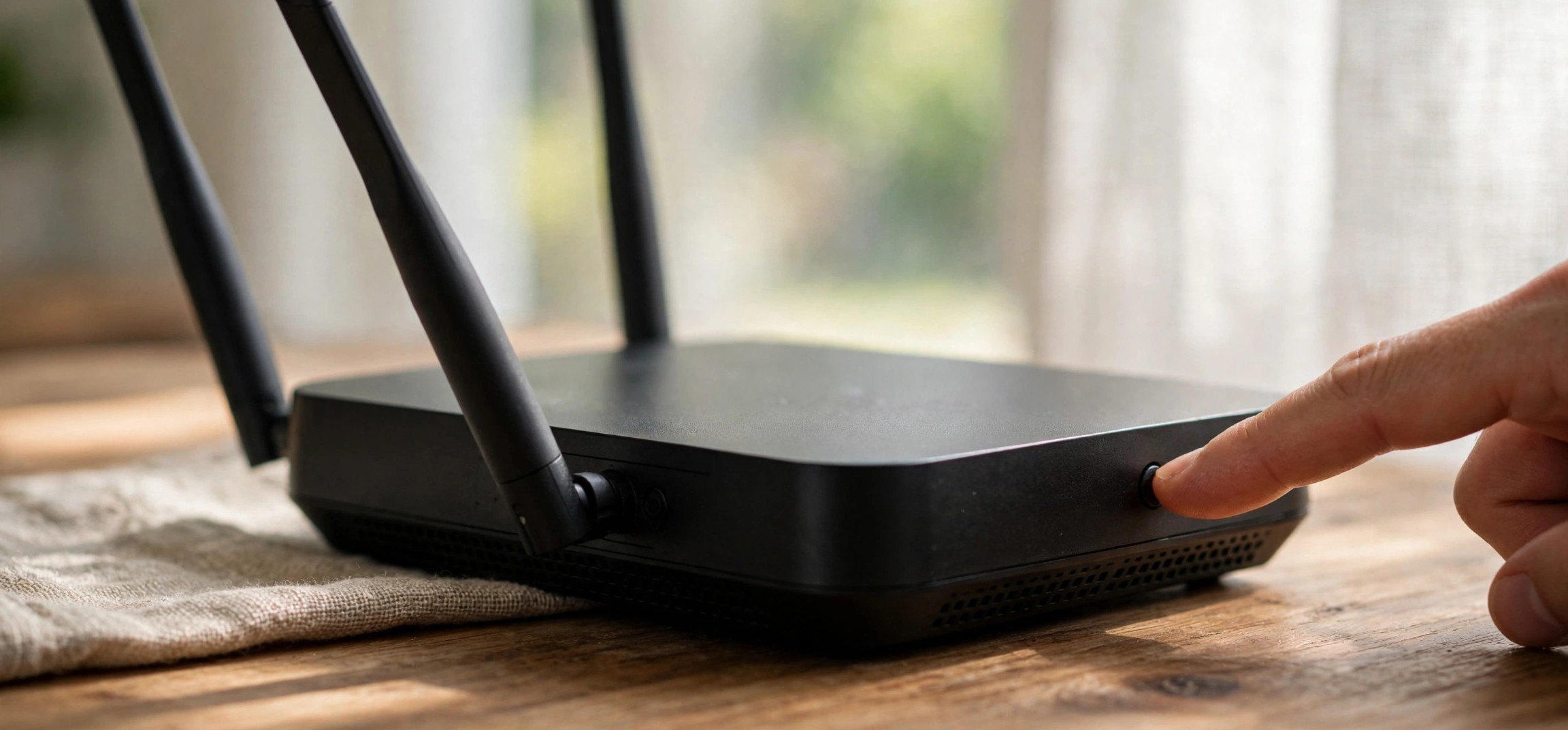
You’ll recognize the WPS button by its label — sometimes it just says “WPS,” and sometimes it’s marked with two curved arrows forming a circle. On some routers it’s a physical button on the back panel; on others it’s a virtual button inside the router’s admin page or mobile app. A few manufacturers, notably Apple with AirPort and some newer mesh systems, never included WPS at all, which tells you something about how the industry feels about it now.
What Does the WPS Button on a Router Do?
Pressing the WPS button puts your router into a short pairing window — usually about two minutes — during which it will accept a connection request from a nearby device without requiring the Wi-Fi password. When you then trigger WPS on the device (a printer, a smart TV, a range extender), the two exchange the network name and the WPA2/WPA3 passphrase automatically through an encrypted handshake, and the device joins the network.
Think of it as the router temporarily opening a fast lane: instead of you acting as the messenger carrying the password from the sticker to the device, the router hands it over directly. After the two-minute window closes, the router goes back to normal and the button does nothing until pressed again. The connected device stays on the network permanently, just as if you’d typed the password manually.
Where WPS Was Meant to Help
WPS was designed for devices with no keyboard and no easy way to type a password: wireless printers, smart TVs, Wi-Fi range extenders, IP cameras, and early smart-home gadgets. Anyone who has tried to enter a 24-character WPA2 key using a TV remote’s on-screen keyboard understands the appeal. For range extenders in particular, WPS became the standard setup method — press the button on the router, press the button on the extender, and the extender clones your network settings.
The Two WPS Connection Methods: Push Button vs PIN
WPS actually defines several ways to connect, but two matter in practice: push-button configuration (PBC) and the PIN method. Understanding the difference is important because one is merely convenient while the other is genuinely dangerous.
Push-Button Configuration (PBC)
This is the method the physical WPS button triggers. You press the button on the router, then activate WPS on the device within two minutes. The security assumption is physical proximity: an attacker would need to be standing next to your router pressing its button at the same moment, which is a high bar. PBC is the relatively safer of the two methods, though it still has a subtle weakness — anyone who can physically reach your router (a visitor, a housemate, a technician) can join your network without knowing the password.
The PIN Method — and Why It’s the Real Problem
The PIN method works differently: the device (or the router’s admin page) displays an 8-digit PIN, and you enter that PIN on the other side to authenticate. Here’s the fatal flaw, discovered by researcher Stefan Viehböck in 2011: the router verifies the PIN in two halves of four digits each, and tells the attacker which half was correct. That reduces the attack from 100 million possible combinations to just 11,000 — a number a simple script can brute-force in a few hours. Worse, most routers of that era had no lockout or rate-limiting, so the attack could run uninterrupted. This is the vulnerability that turned WPS from a convenience feature into a liability, and it’s the reason security guidance ever since has been to disable WPS entirely.
For background on the standard itself, the Wikipedia article on Wi-Fi Protected Setup documents the protocol’s history and the PIN vulnerability in detail.
How to Connect a Device Using the WPS Button
If you decide the convenience is worth it for a specific device — say, a printer with no keyboard — here is the standard procedure. These steps assume your router still has WPS enabled, which it is by default on most models.
- Place the device you want to connect within a few meters of the router for a reliable handshake.
- Press and hold the WPS button on the router for 2–3 seconds, then release. The WPS or internet LED will usually start blinking to show pairing mode is active.
- Within two minutes, activate WPS on the device. On a printer this is often under Network Settings or Wi-Fi Setup; on a range extender it’s usually its own WPS button; on Android phones (older versions) it was under Wi-Fi → Advanced → WPS Push Button.
- Wait for both devices to confirm. The router’s LED will stop blinking, and the device should report that it’s connected.
- Test the connection — print a test page, or check that the extender’s signal LED shows a successful link — then move the device to its final location.
Note for Android users: Google removed the WPS push-button option from Android’s Wi-Fi settings years ago, so modern Android phones can’t use this method at all. If your phone can’t see your network for other reasons, see our guide on 5GHz WiFi not showing up on Android instead.
The WPS Security Problem: Why Experts Say Turn It Off
The push-button method’s main risk is physical access, but the PIN method’s flaw is far worse because it can be exploited remotely by anyone within Wi-Fi range. Here’s why security professionals have recommended disabling WPS for over a decade:
The PIN Brute-Force Attack
As described above, the 8-digit PIN is validated in two halves, which collapses the search space to about 11,000 guesses. Tools that automate this attack have been publicly available since 2011, and on vulnerable routers the attack typically succeeds in under a day — often in just a few hours. Once the attacker recovers the PIN, the router hands over the actual WPA2 passphrase, giving full network access.
Most Routers Never Fixed It Properly
The Wi-Fi Alliance’s recommended fix was temporary lockouts after failed PIN attempts, but implementation was inconsistent. Many routers either never received a firmware fix or implemented lockouts that reset on reboot — letting an attacker simply power-cycle the router (or wait out a short lockout) and continue. Some routers even kept WPS active when the user thought they’d disabled it in the admin panel, a bug found in several major brands.
Even Push-Button Has a Physical-Access Caveat
The button method requires touching your router, so it’s not remotely exploitable the way the PIN is. But in shared houses, offices, Airbnbs, or anywhere guests and service workers can reach the router, anyone can join the network in seconds without the password — and you’d never know. If your router sits in a common area, that’s a real exposure.
Should You Use the WPS Button? The Honest Answer
For most people, most of the time: no, don’t use it — and disable it. The convenience of skipping a password entry is real but small, while the PIN vulnerability is severe and well-understood. Typing a Wi-Fi password takes thirty seconds once per device; a compromised network can cost you far more in stolen data, hijacked accounts, or a stranger piggybacking on your connection for illegal activity traced back to your IP address.
The narrow exceptions: if you have a device with genuinely no way to enter a password (some old printers or cameras), and your router lets you enable WPS temporarily and then turn it straight back off, a one-time push-button pairing is a reasonable trade-off. Use the button method only — never the PIN — and disable WPS immediately afterward. For everything else, type the password.
There’s also a simpler long-term fix: make your Wi-Fi password easier to type without making it weak. A passphrase of four random words (“correct horse battery staple” style) is both strong and painless to enter, even on a TV remote. Store it in your phone’s notes or a password manager so you never have to squint at the router sticker again. Our guide on how to create strong passwords you can actually remember walks through exactly this approach.
How to Disable WPS on Your Router
Disabling WPS takes about a minute in the admin panel, and it’s the single most effective thing you can do here. The exact menu path varies by brand, but the pattern is the same:
- Connect to your router and open the admin panel (usually
192.168.1.1or192.168.0.1; check the sticker on the router). - Log in with your admin username and password — not the Wi-Fi password.
- Look under Wireless, Advanced Wireless, or Wi-Fi Settings for a “WPS,” “Wi-Fi Protected Setup,” or “Push Button” option.
- Set WPS to Disabled or Off, and disable both the push-button and PIN options if they’re listed separately.
- Save/apply the setting and reboot the router if prompted.
- Verify: the change should survive a reboot. On some models you may need to check that the setting actually stuck, since a few firmwares have been known to re-enable it silently.
While you’re in the admin panel, confirm your network uses WPA2-Personal (AES) or WPA3-Personal — never WEP or WPA, which are broken — and that your admin password isn’t still the factory default.
Safer Alternatives to WPS
You don’t need WPS to make connecting devices painless. These options give you the convenience without the vulnerability:
Wi-Fi QR Codes
Most modern routers and phones can generate a QR code containing your network name and password. Guests and new devices just scan it with their camera — no typing, no WPS. On Android, go to Wi-Fi settings, tap your connected network, and tap Share to display the QR code. iPhones can scan it straight from the Camera app.
A Separate Guest Network
For visitors and smart-home gadgets, set up a guest network with a simple password and client isolation turned on. Guests get internet without ever touching your main network’s credentials, and IoT devices stay segmented from your computers. This is strictly better than handing out WPS access.
Manual Setup With WPA2/WPA3
For your own devices, typing the passphrase once is the gold standard. Pair it with a memorable passphrase and a password manager, and you’ll never miss WPS. If a device keeps dropping off the network after setup, the issue is usually signal or band-related — see our guide on router blinking red light meaning and fixes if the router itself is showing connection trouble.
FAQs
What happens if I press the WPS button by accident?
Nothing bad happens on its own. Pressing the button just opens the two-minute pairing window; if no device attempts a WPS connection in that window, the router returns to normal and your network is unchanged. There’s no need to reset anything.
Does WPS work with WPA3?
Not really. The WPS standard was designed for WPA/WPA2, and the Wi-Fi Alliance replaced it with Wi-Fi Easy Connect (DPP) for WPA3-era onboarding. Most WPA3-capable routers either drop WPS or keep it only for the legacy WPA2 radio. If your router offers WPA3, use it — and leave WPS off.
Why doesn’t my iPhone or new Android phone have a WPS option?
Apple never supported WPS on iOS, and Google removed WPS push-button support from Android years ago because of the security concerns. The industry has quietly walked away from the feature; the button remains on routers mostly for backward compatibility with old printers and extenders.
Can someone hack my Wi-Fi through WPS if it’s disabled?
If WPS is genuinely disabled in firmware, the PIN attack surface is gone. The caveat is “genuinely” — a handful of router models kept responding to WPS PIN attempts even when the admin panel said disabled. Keeping firmware updated is the fix for that edge case, and it’s good practice anyway.
Is the WPS PIN on the router sticker dangerous?
The sticker PIN is only useful to someone who can read your sticker (physical access) or attack the PIN protocol over the air. Disabling WPS neutralizes the over-the-air attack. As general hygiene, don’t photograph the sticker or share it publicly.
Should I use WPS to set up a Wi-Fi extender?
It’s the fastest method, and for a one-time setup it’s acceptable: use the push-button method, then disable WPS on the router afterward. Better still, many extenders now support setup through a mobile app or web wizard without WPS at all — use that if available.
Conclusion
So, what does the WPS button on a router do, and should you use it? It opens a two-minute window for password-free device pairing — convenient, but built on a protocol with a serious, unfixable-in-practice PIN vulnerability. The balanced verdict: use the push-button method only for devices that can’t accept a typed password, then turn WPS straight back off. For everything else, a strong WPA2/WPA3 passphrase, QR-code sharing, and a guest network give you all the convenience with none of the risk. Take sixty seconds today to disable WPS in your router’s admin panel — it’s one of the easiest security wins in home networking.