
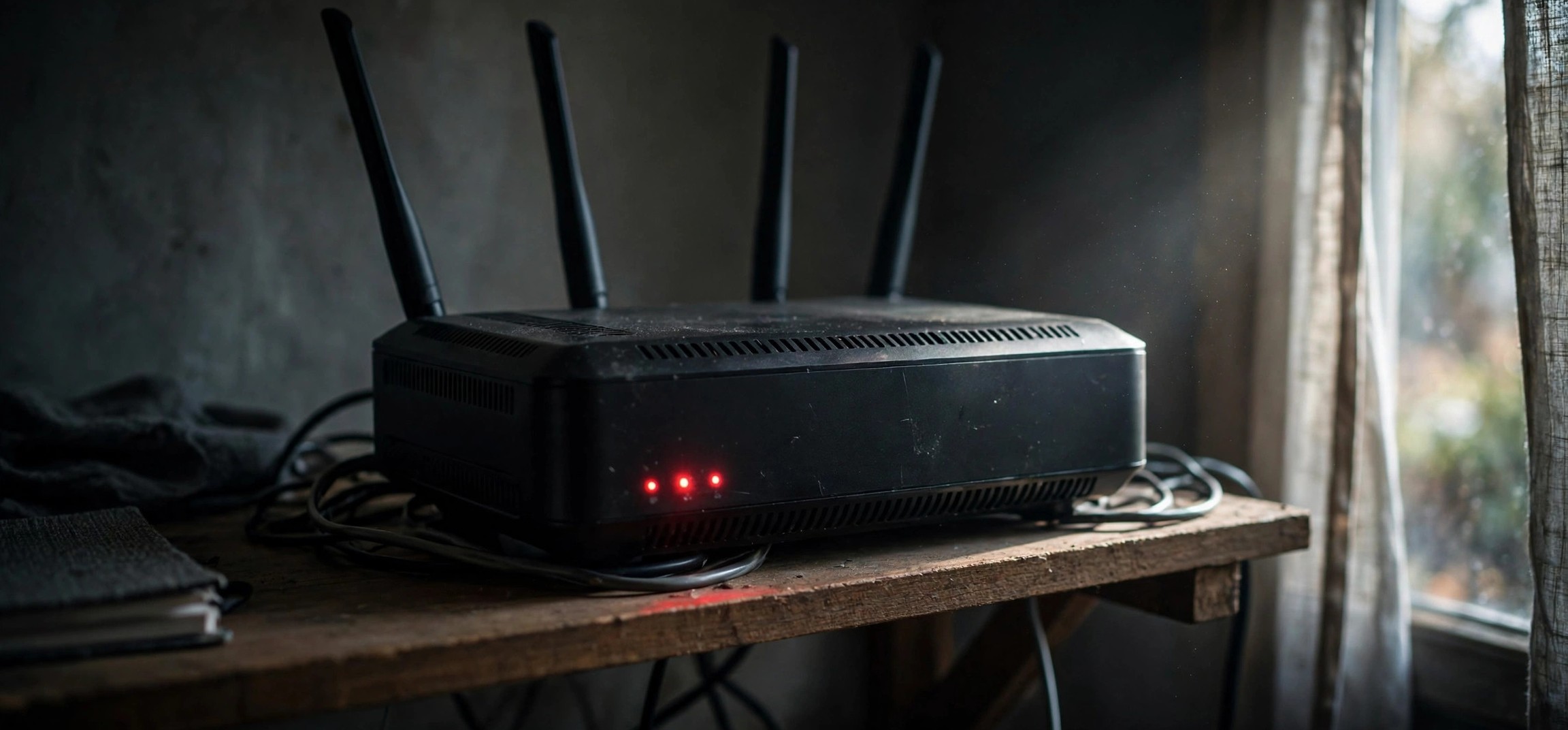
If your router blinking red light issue just started, don’t panic — but don’t ignore it either. Learning the router blinking red light meaning and how to fix it can save you a long hold with your internet provider’s support line. A solid or blinking red light on a router almost always signals that the router cannot reach the internet: a loose or damaged line, an ISP outage, failed firmware, or a misconfigured setting is usually to blame. This guide explains exactly what that red light means on the most popular router brands, then walks you through seven practical fixes in order, from the 60-second checks to the deeper troubleshooting steps.
Table of Contents
- What Does a Blinking Red Light on a Router Mean?
- Red Light Meanings by Router Brand
- Before You Start: What to Check First
- Fix 1: Power Cycle Your Router and Modem
- Fix 2: Check Cables and Physical Connections
- Fix 3: Check for an ISP Outage
- Fix 4: Update Your Router Firmware
- Fix 5: Factory Reset the Router
- Fix 6: Inspect the ISP Line and ONT
- Fix 7: Contact Your ISP With the Right Details
- When the Red Light Means It’s Time for a New Router
- FAQs
- Conclusion
What Does a Blinking Red Light on a Router Mean?
On nearly every consumer router, a red LED is the hardware’s way of saying “something is wrong upstream.” The exact pattern matters: a blinking red light usually means the router is powered on and trying — but failing — to establish an internet connection, while a solid red light often indicates a more serious fault, such as a failed firmware update or a dead internet port. Either way, the red light is pointing at the link between your home and your internet service provider (ISP), not at your Wi-Fi signal itself. Your devices may still see the Wi-Fi network name, but there will be no usable internet behind it.
Common causes of a router blinking red light include a disconnected or damaged WAN/DSL cable, a service outage on your ISP’s side, a failed or interrupted firmware update, incorrect PPPoE or login settings after a reset, overheating hardware, and in rare cases a dying router. The good news is that most of these have straightforward fixes you can do yourself in minutes, and the red light will turn green, white, or blue once the connection is restored.
Red Light Meanings by Router Brand
Router makers don’t all use the same color language, so a red light can mean slightly different things depending on the brand printed on the box. Here is a quick reference for the most common ones:
Netgear (Nighthawk, Orbi)
On Netgear routers, a blinking red (or amber) internet LED generally means the router cannot get an IP address from the modem or ISP. A solid red often appears during a firmware update — if the update was interrupted, the router may be stuck in a fault state until it is reset or the firmware is re-applied.
TP-Link (Archer, Deco)
TP-Link routers typically show a pulsing or solid red LED when there is no internet connection. On Deco mesh systems, a red light on a satellite unit can also mean it has lost its connection to the main Deco node, so check placement and backhaul before assuming your ISP is down.
ASUS (RT series, ZenWiFi)
ASUS routers use a red LED to flag a failed internet connection. The ASUS Router app usually mirrors the exact error — “No Internet connection detected” — which confirms the problem is on the WAN side rather than with your Wi-Fi settings.
Linksys
On Linksys routers, a blinking red light on the internet indicator means the router is not connected to the internet. Linksys’s own support documentation recommends power cycling the modem and router as the first step for this exact symptom.
ISP-Provided Routers (JioFiber, Airtel Xstream, Xfinity, BT Hub)
Routers supplied by ISPs often blink red when the fiber or DSL line itself is down. On fiber connections, look at the ONT (the small white box on your wall) too — if its LOS (Loss of Signal) light is red or blinking, the break is on the fiber line outside your home, and no amount of router rebooting will fix it.
Before You Start: What to Check First
Two quick checks can save you the whole troubleshooting session. First, look at your phone: if mobile data also shows no bars or is crawling, you may be in the middle of a wider regional outage rather than a router problem. Second, ask whether anything changed recently — a power cut, a moved router, a new cable, or a firmware update that was interrupted. A router that blinked red right after a storm or a power surge points strongly at hardware or line damage.
Keep a phone with mobile data handy so you can look up your ISP’s outage page and your router model’s support documentation while your home internet is down. If you can still reach Netgear’s support site or TP-Link’s support site on mobile data, bookmark your model’s manual now — you’ll need the default login and the reset procedure for the deeper fixes.
Fix 1: Power Cycle Your Router and Modem
A power cycle clears stale sessions, hung DHCP leases, and temporary firmware glitches. It resolves a surprising number of red-light cases, so always start here even if it feels too simple.
- Unplug the power cable from the router and from the modem or ONT (the box your ISP installed). If they are combined in one unit, one plug is fine.
- Wait a full 60 seconds. This lets capacitors drain and forces the ISP’s equipment to release your old session.
- Plug the modem or ONT back in first. Wait 2 minutes until its lights stabilize — on fiber, the PON light should go solid green and LOS should stay off.
- Now plug the router back in and wait another 2–3 minutes for it to boot and negotiate a connection.
- Check the LED. If it turns green, white, or blue, you’re back online. Test by loading a page on a device connected to the Wi-Fi.
If the light goes red again within minutes, move on to Fix 2 — the problem is deeper than a hung session.
Fix 2: Check Cables and Physical Connections
Loose, chewed, or bent cables are one of the most common reasons for a router blinking red light, and they take two minutes to rule out.
- Trace the cable from the router’s WAN/Internet port (usually yellow or blue, and labeled) to the modem or ONT. Make sure it is firmly seated at both ends — it should click.
- Inspect the whole length for sharp bends, kinks, crushed spots under furniture, or pet chew marks. Ethernet cables are fragile inside; damage you can barely see can still kill the signal.
- If you have a spare Ethernet cable, swap it in. This single test eliminates the cable as a suspect immediately.
- Check the power adapter too. A failing adapter can underpower the router, causing random red-light episodes. Use only the original adapter, and try a different wall socket.
- For DSL connections, make sure the phone-line cable runs through a microfilter/splitter correctly, and that the wall jack itself is secure.
For more on what to do when the network name appears but nothing loads, see our guide on how to fix Wi-Fi connected but no internet on Android — the symptoms overlap even though this article is about the router hardware itself.
Fix 3: Check for an ISP Outage
If your cables are fine and a power cycle didn’t help, the next most likely culprit is your ISP. A red light during an outage is normal and expected — there is nothing wrong with your equipment.
- Visit your ISP’s outage or service-status page on mobile data, or check their official social media account for outage announcements.
- Ask a neighbor on the same provider whether their internet is down. If theirs is too, it’s an area outage.
- Look at your ONT or modem lights. On fiber, a red or blinking LOS light means the fiber line itself is broken — typically cut by road work or a storm — and only your ISP’s field team can repair it.
- If an outage is confirmed, leave the router powered on and wait. Most residential outages are resolved within a few hours.
- Once the ISP declares the outage fixed and your light is still red, do one more power cycle (Fix 1) to force the router to re-authenticate.
Fix 4: Update Your Router Firmware
Outdated or corrupted firmware can cause the internet LED to blink red, especially after your ISP pushes a network-side change that old firmware can’t handle. Only attempt this if you can reach the router’s admin panel from a connected device.
- Connect a laptop or phone to the router (Wi-Fi is fine even without internet).
- Open a browser and go to the admin address — usually
192.168.1.1,192.168.0.1, orrouterlogin.netdepending on brand. Log in with your admin credentials (check the sticker under the router if you never changed them). - Find the firmware section (often under Administration, Advanced, or System Tools) and check the current version against the latest on the manufacturer’s site.
- If an update is available, install it over a wired connection if possible, and do not power off the router during the update — an interrupted flash is a classic cause of a permanent red light.
- After the router reboots, verify the LED color and test the connection.
Enable automatic firmware updates if your router offers them, so security and compatibility patches install during the night instead of catching you by surprise.
Fix 5: Factory Reset the Router
If firmware is current and the light is still red, a misconfigured setting — a wrong PPPoE username, a broken static IP, or corrupted NVRAM — may be the cause. A factory reset wipes all of it and returns the router to out-of-the-box behavior.
- With the router powered on, press and hold the recessed reset button (use a paperclip) for 10–15 seconds until the lights flash and the router reboots.
- Wait for the boot to complete, then log in to the admin panel with the default credentials from the router’s sticker.
- Run the setup wizard. If your ISP uses PPPoE (common for DSL and some fiber plans), enter the broadband username and password your ISP gave you — this is the step most people get wrong after a reset.
- Re-create your Wi-Fi name and password, then check the internet LED.
- If the red light persists even with correct PPPoE credentials and a known-good cable, the fault is almost certainly on the ISP line or the router hardware.
Note that a reset erases port-forwarding rules, guest networks, and parental controls. Take a screenshot of your important settings before resetting if you can still reach the admin panel.
Fix 6: Inspect the ISP Line and ONT
When the router is fine but the line is dead, the red light is telling the truth: there is no signal to connect to. This fix is about reading the diagnostic lights on your ISP’s equipment.
- Find the ONT (fiber) or modem (cable/DSL) — the box your ISP installed, separate from your router.
- On an ONT, check the PON and LOS lights. PON solid green is good. LOS red or blinking means the fiber signal is lost — this needs an ISP technician.
- On a cable modem, look for the downstream/upstream and online lights. If “Online” never goes solid after several minutes, the coaxial line or the ISP’s node is the problem.
- Make sure the fiber cable (thin, often yellow) has no sharp bends — fiber breaks easily at tight angles.
- Do not open the ONT or attempt to splice fiber yourself. Log the exact light pattern (e.g., “PON off, LOS blinking red”) to report to your ISP.
If you also want to rule out a device-side issue while you wait, our article on the WPS button on your router explains a safer way to reconnect devices once service is restored — without exposing your network to WPS security flaws.
Fix 7: Contact Your ISP With the Right Details
If you’ve worked through Fixes 1–6 and the red light is still on, it’s time to escalate. Support agents resolve tickets much faster when you hand them a clean symptom report instead of “internet not working.”
- Note your router model, the exact LED pattern (blinking red vs solid red), and which lights are on at the ONT/modem.
- List what you’ve already tried: power cycle, cable swap, firmware check, factory reset. This stops the agent from making you repeat everything.
- Ask specifically: “Is there an outage or maintenance in my area, and is my line showing a signal fault on your end?” Agents can run a remote line test while you wait.
- If the line test fails, request a technician visit. For fiber LOS faults, insist the ticket is logged as a line fault, not a router issue.
- Get a ticket or complaint number and an estimated resolution time, and ask whether a bill credit applies for the downtime.
When the Red Light Means It’s Time for a New Router
Sometimes the red light is the router’s obituary. Consider replacing it if the unit is more than 5 years old, runs hot to the touch even in a ventilated spot, drops the connection daily despite a healthy line, or shows a solid red light immediately after a firmware flash with no recovery. Routers that only support 2.4 GHz or 802.11n are also worth retiring — modern dual-band routers are inexpensive and far more reliable. And if only one device struggles while everything else is fine, the problem may be on that device: our guide on 5GHz WiFi not showing up on Android phones covers the phone-side fixes for that exact situation.
FAQs
Why is my router blinking red but my Wi-Fi still shows up?
The Wi-Fi radio and the internet connection are two separate things. Your router can broadcast its network name perfectly while having no internet behind it — that’s exactly what the red light is telling you. Devices will connect to the Wi-Fi but show “connected, no internet” until the upstream link is restored.
How long should a router blink red after a power cut?
Give it 3–5 minutes. The modem or ONT must re-lock onto the ISP signal first, then the router negotiates its session. If it’s still red after 10 minutes and your neighbors are online, start with Fix 1 and Fix 2 above rather than waiting longer.
Can a red light mean my router was hacked?
Extremely unlikely. A blinking red light is a connectivity indicator, not a security alert. Compromised routers don’t announce themselves with a red LED. Keep your admin password changed and firmware updated as general hygiene, but treat the red light as a line or hardware issue.
Will a factory reset fix a red blinking light caused by my ISP?
No — and it can make things worse by wiping your PPPoE login details. Only reset after you’ve confirmed the ISP line is healthy (no outage, ONT lights normal). If the line is down, a reset just adds a reconfiguration job on top of the outage.
Is it safe to keep using the router while the light is red?
Yes, it’s safe — a red light means no internet, not a fire hazard. The one exception is a router that is very hot or smells of burning; unplug that immediately and replace it. Otherwise, local network features like file sharing between devices may still work.
Why does my router blink red every night at the same time?
A repeating pattern usually points to scheduled ISP maintenance, an overheating router that fails under evening load, or a DHCP lease that expires and fails to renew. Check the router’s system log in the admin panel around the failure time — the error entries will usually name the cause, such as “WAN DHCP renewal failed.”
Conclusion
A router blinking red light almost always means the same thing: your router can’t reach the internet. Work the problem from the outside in — power cycle, cables, ISP outage, firmware, factory reset, line inspection, and finally a well-prepared call to your ISP — and you’ll resolve the vast majority of cases without a technician visit. If the red light keeps returning on aging hardware, take it as a sign to upgrade to a modern dual-band router. Bookmark this guide so the next time that red LED starts blinking, you’ll know exactly what it means and how to fix it.






