
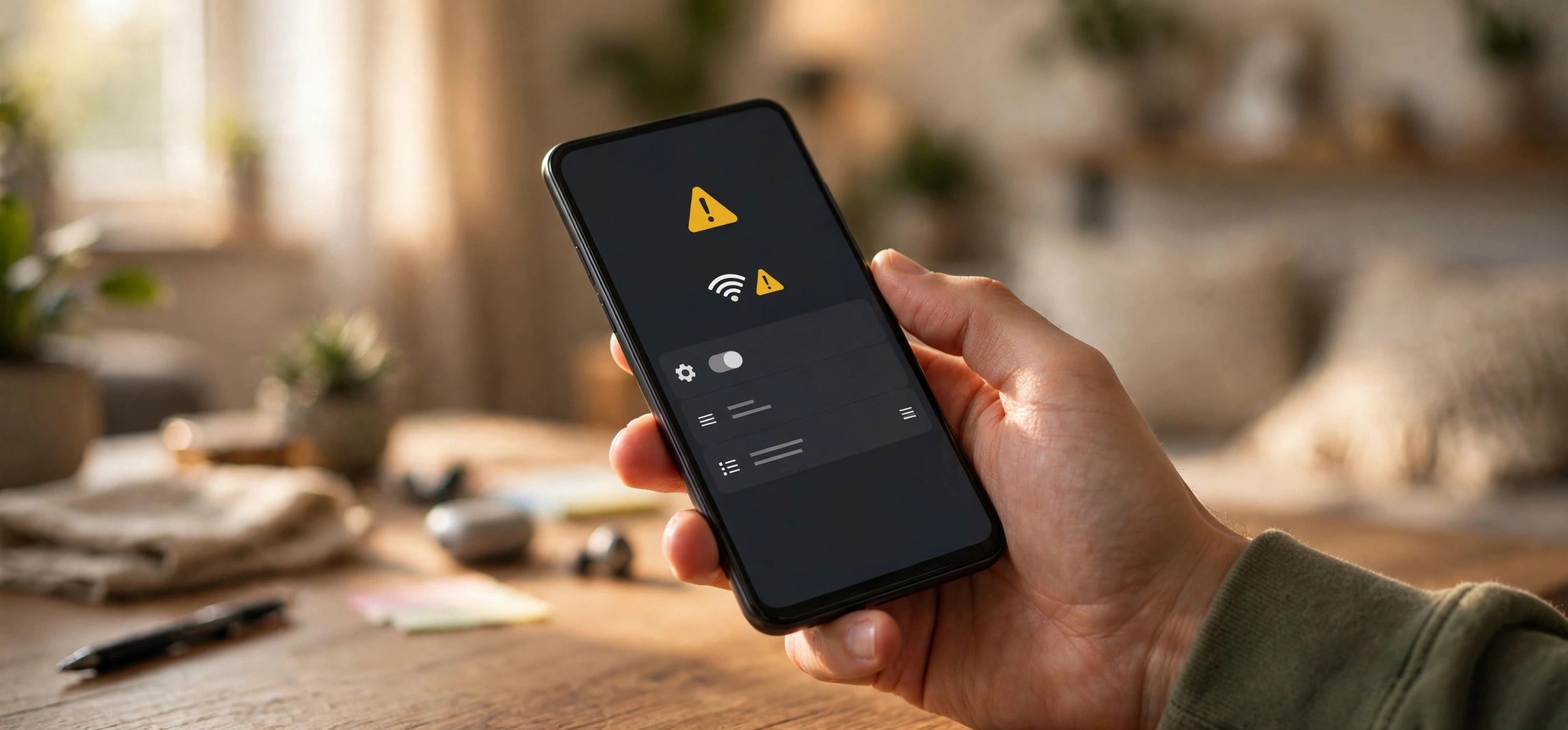
Nothing is more frustrating than seeing the WiFi icon light up on your phone while every page refuses to load. If you need to know how to fix WiFi connected but no internet on Android, you are dealing with one of the most common Android connectivity problems — and in most cases it takes under ten minutes to resolve. The good news is that the cause is usually simple: a stale IP address, a misbehaving router, a blocked connection, or a settings hiccup after an update. This guide walks you through 12 practical steps in order, from the quickest checks to the deeper fixes, so you can get back online fast.
Table of Contents
- Why Does Android Say Connected But Have No Internet?
- 1. Restart Your Phone and Toggle WiFi
- 2. Turn Airplane Mode On and Off
- 3. Forget the Network and Reconnect
- 4. Restart Your Router
- 5. Check If Other Devices Have Internet
- 6. Verify Your Date and Time Settings
- 7. Switch Between 2.4 GHz and 5 GHz Bands
- 8. Turn Off VPN and Check Private DNS
- 9. Check for Android System Updates
- 10. Check Whether the Router Has Blocked Your Device
- 11. Reset Your Network Settings
- 12. Contact Your Internet Provider
- FAQs
- Conclusion
Why Does Android Say Connected But Have No Internet?
Your Android phone shows “Connected” when it successfully joins the WiFi network at the link layer — meaning it has associated with the router and usually obtained an IP address. But that only proves you can talk to the router, not that the router can reach the internet. In many cases Android will even flag the problem for you with a small “x” or exclamation mark on the WiFi icon, or a “Connected, no internet” message under the network name.
Common causes include an expired or conflicting DHCP lease (your phone’s IP address stopped working), a router that lost its connection to the ISP, a captive portal you never signed into (common on hotel and coffee-shop networks), a VPN or Private DNS setting that broke name resolution, incorrect date and time on the phone breaking certificate validation, or your device being blocked by the router’s parental controls or MAC filtering. Working through the steps below in order will isolate the cause.
1. Restart Your Phone and Toggle WiFi
The simplest fix is often the right one. A quick restart clears temporary glitches in the WiFi radio stack and forces a fresh DHCP handshake with the router.
- Swipe down from the top of the screen to open Quick Settings.
- Tap the WiFi tile to turn it off, wait 10 seconds, then tap it again to turn it back on.
- If that doesn’t work, press and hold the power button and choose Restart.
- Once the phone boots up, try loading a website.
This alone resolves a surprising number of cases, especially after the phone has been connected for days without a reboot.
2. Turn Airplane Mode On and Off
Airplane mode forces every radio — WiFi, Bluetooth, and cellular — to reinitialize. This is slightly deeper than a WiFi toggle and clears more stale state.
- Open Quick Settings and tap the Airplane mode tile to enable it.
- Wait about 30 seconds.
- Tap the tile again to disable airplane mode, then let the phone reconnect to WiFi.
- Test your connection in the browser.
If you travel often, this is also a great habit after landing and re-enabling your radios.
3. Forget the Network and Reconnect
Saved network profiles can become corrupted — wrong security settings cached, or a stale password stored after the router admin changed it. Forgetting the network wipes that profile so your phone builds a fresh one.
- Go to Settings > Network & internet > Internet (on some phones: Settings > Connections > WiFi).
- Tap the gear icon next to your connected network.
- Tap Forget (it may say “Forget network”).
- Go back to the network list, tap your network name, enter the password carefully, and reconnect.
- Test whether the internet works now.
Type the password manually rather than pasting it — an invisible trailing space is a classic silent failure.
4. Restart Your Router
When the problem is on the network side rather than the phone, nothing beats a proper router reboot. Routers run for months without restarting and accumulate memory leaks and stale NAT table entries.
- Unplug your router (and modem, if separate) from power.
- Wait a full 60 seconds — this lets the capacitors drain and ensures a cold boot.
- Plug the modem back in first, wait until its lights stabilize (usually 1–2 minutes).
- Then plug the router back in and wait for it to fully boot.
- Reconnect your phone and test.
If your router has a blinking red light after the reboot, the fault is likely on the ISP side — see our guide to what a router blinking red light means and how to fix it.
5. Check If Other Devices Have Internet
This diagnostic step takes 30 seconds and tells you where the fault lives.
- Try loading a page on another device connected to the same WiFi — a laptop, tablet, or another phone.
- If other devices do have internet, the problem is isolated to your Android phone. Skip ahead to the phone-focused steps.
- If other devices also have no internet, the router or ISP is at fault — focus on the router reboot and ISP steps instead.
This single check saves you from resetting your phone’s network settings when the router was the culprit all along.
6. Verify Your Date and Time Settings
HTTPS connections validate security certificates against your phone’s clock. If the date or time is wrong — common after a battery drain, a failed update, or travel across time zones — certificate checks fail and pages won’t load even though you are “connected.”
- Go to Settings > System > Date & time.
- Turn on Set time automatically and Set time zone automatically.
- If they were already on, toggle them off and on again.
- Reopen your browser and try again.
7. Switch Between 2.4 GHz and 5 GHz Bands
Many routers broadcast two networks: a 2.4 GHz band with long range and a 5 GHz band with higher speed. Android sometimes clings to the weaker signal of one band while the other works fine. This is especially common if your phone cannot see the 5 GHz network or vice versa.
- Open your WiFi network list and look for two entries with similar names (often one ends in “_5G” or “_5GHz”).
- Connect to the other band and test the internet.
- If only one band is visible, open your router’s admin page (usually http://192.168.1.1) and make sure both bands are enabled.
As a rule of thumb, use 5 GHz near the router and 2.4 GHz in far rooms.
8. Turn Off VPN and Check Private DNS
VPN apps and custom DNS settings reroute all your traffic. If the VPN server is down or the Private DNS hostname is unreachable, Android shows a healthy WiFi connection with zero working internet.
- Disconnect any VPN app and test the connection.
- Go to Settings > Network & internet > Private DNS.
- If it is set to a custom hostname, switch it to Automatic temporarily and test.
- If the internet returns, your VPN provider or DNS host was the problem — contact their support or pick a different server.
Some ad-blocking apps install a local VPN that silently breaks connectivity after updates, so check for those too.
9. Check for Android System Updates
Connectivity regressions sometimes ship with buggy updates — and get fixed in the next patch. An outdated phone can also have expired root certificates that block HTTPS.
- Go to Settings > System > System update (or Software update).
- Install any pending updates and restart.
- After the update, reconnect to WiFi and test.
While you are there, update the Android System WebView and Chrome from the Play Store too, since they handle page rendering.
10. Check Whether the Router Has Blocked Your Device
Parental controls, access schedules, and MAC address filtering can block a specific device while everyone else browses happily. If this problem started after someone “set up the WiFi,” this is a prime suspect.
- Find your phone’s MAC address: Settings > About phone > Status > WiFi MAC address. Note that Android 10+ uses a randomized MAC by default — check the actual one under your WiFi network’s details.
- Log into your router’s admin page (commonly http://192.168.0.1 or http://192.168.1.1) from a working device.
- Look for Access Control, Parental Controls, or MAC Filtering sections.
- Remove your device from any blocklist or pause schedule, then reconnect.
If you don’t manage the router (office, dorm, rental), ask the admin whether your device was restricted.
11. Reset Your Network Settings
When nothing else works, resetting network settings wipes every saved WiFi network, Bluetooth pairing, and mobile data configuration and rebuilds them from scratch. It is drastic but extremely effective for corrupted network stacks.
- Go to Settings > System > Reset options.
- Tap Reset WiFi, mobile & Bluetooth (wording varies by brand).
- Confirm the reset and restart the phone.
- Rejoin your WiFi network by entering the password fresh.
Important: this does NOT delete your photos, apps, or files — only network settings. But you will need to re-pair Bluetooth devices and re-enter all saved WiFi passwords.
12. Contact Your Internet Provider
If no device in the house has internet, the router reboot changed nothing, and the router’s lights show a fault, the outage is beyond your walls. Before calling, note the pattern — when it started, which lights are on, and whether it affects every device — because support will ask.
- Check your ISP’s outage page or app (most providers publish live status).
- If there is no reported outage, restart the modem/router one more time while on the line with support.
- Ask them to check the line to your home and, if needed, schedule a technician visit.
FAQs
Why does my Android phone say “Connected, no internet” only on my home WiFi?
Because the fault is specific to your network: usually a router or ISP issue, or your device being blocked by parental controls or MAC filtering. If the phone works fine on other networks, run the router-focused steps (4, 5, 10, and 12) first.
Why does my WiFi connect but nothing loads after an Android update?
Updates can corrupt saved network profiles or reset Private DNS settings. Forget the network and reconnect, check Private DNS, and install any follow-up patches — Google often ships connectivity hotfixes within days of a major release.
Can a wrong date and time really break my internet?
Yes. HTTPS certificate validation depends on an accurate clock. If your phone thinks it is 2019, modern certificates appear invalid and browsers refuse to load pages. Automatic date and time fixes this instantly.
Is “Connected, no internet” the same on public WiFi?
Often it is a captive portal — the sign-in page for hotels, airports, and cafes. Open your browser and visit any plain HTTP site; the portal login page should appear. Complete it and your connection will activate.
Will resetting network settings delete my data?
No. The reset only clears WiFi networks, Bluetooth pairings, VPN configurations, and mobile data settings. Your photos, apps, messages, and files are untouched. You will just need to re-enter WiFi passwords afterward.
Conclusion
Learning how to fix WiFi connected but no internet on Android comes down to working from the phone outward: quick toggles and a restart first, then forget-and-reconnect, then the router and ISP checks, and finally the deeper settings like Private DNS, device blocking, and a network settings reset. In the vast majority of cases, one of the first six steps solves it. If you run into a different wireless headache — like a laptop that won’t stay connected or a single device that crawls while everything else flies — check our guides on WiFi disconnecting on Windows 11 and WiFi being slow on one device only for targeted fixes.






